UI Node
The UI node is a flow control node that pauses the workflow and presents a form to the end user before execution continues. It lets the user enter or update values for fields, properties, and actions used by downstream nodes. You define the form by dragging those items from nodes that follow the UI node into the canvas. At runtime, the user completes the form and then resumes the workflow.
To see what the end user experiences when the workflow reaches a UI node, refer to UI Node Viewer.
UI Builder
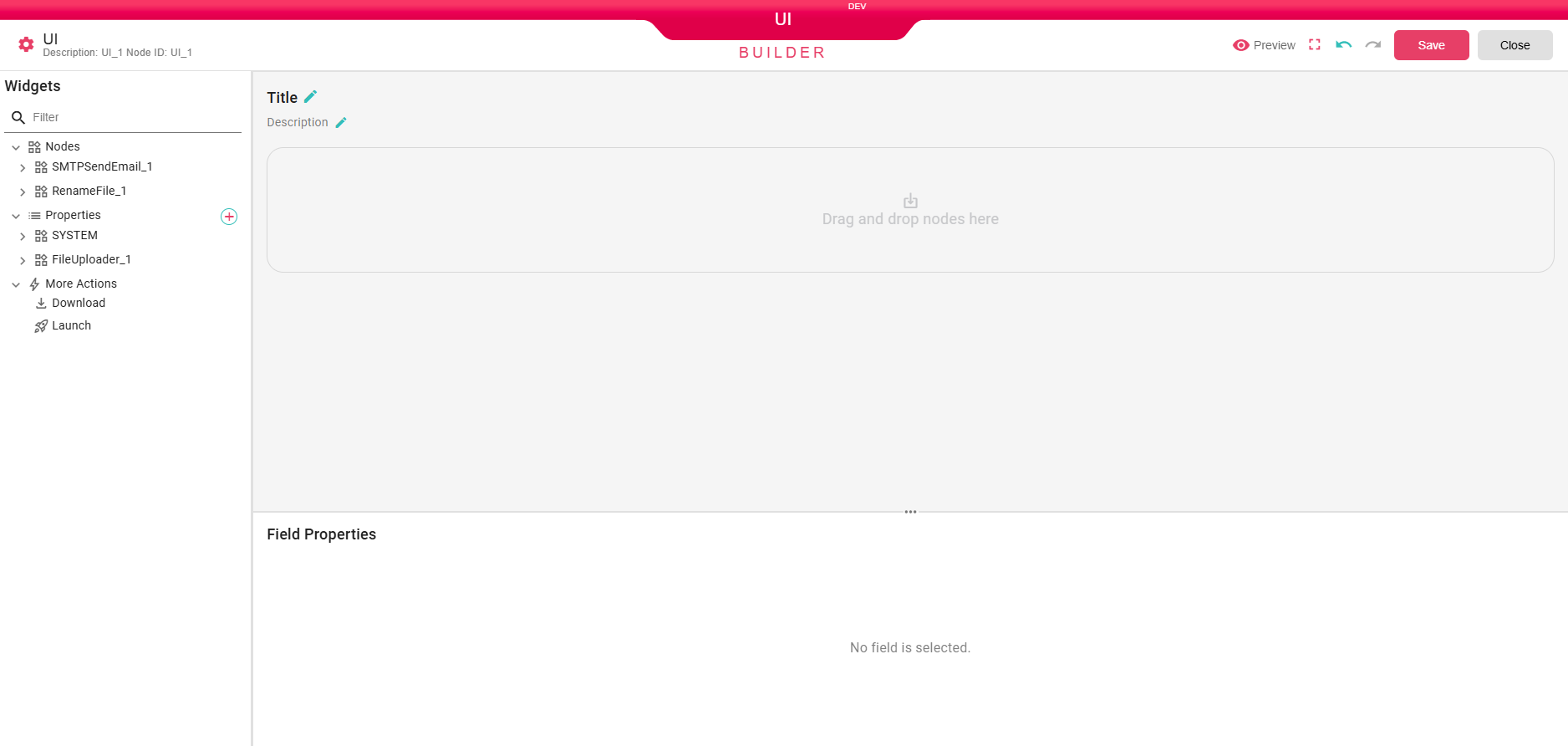
Opening the UI node launches the UI Builder: an editor with a Widgets panel on the left and a canvas in the center.
Title and Description
At the top of the canvas you can set a Title and a Description for the form. Click the pencil icon next to each to edit the text. These are displayed to the user when the workflow pauses.
Preview
At the top-right you can click on Preview to open a preview of the form as the user will see it.
Widgets Panel
The left panel lists all available widgets grouped into categories. Use the Filter box at the top to search by name.
Nodes
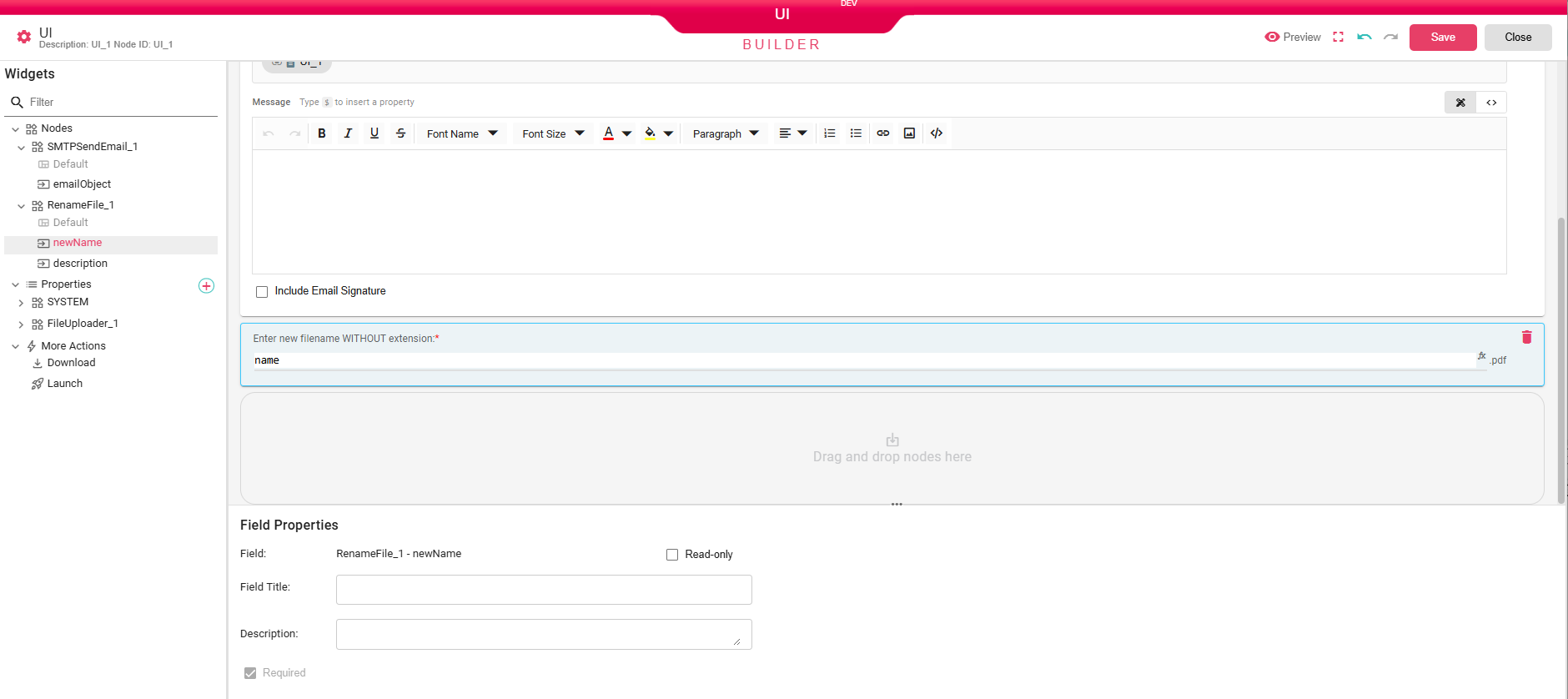
Expands to show every node that is downstream of the UI node in the workflow. Each node can be further expanded to reveal its individual configurable fields. For example, an SMTPSendEmail node exposes fields such as emailObject (the full email composition form), and a RenameFile node exposes fields such as newName and description.
Drag any field from the Nodes section onto the canvas to include it in the user form.
Properties
Lists custom workflow properties and system-level properties (such as the executing user). Click the + button to add a new property. Drag any property onto the canvas to let the user set its value at runtime.
More Actions
Contains action widgets that can be added to the form:
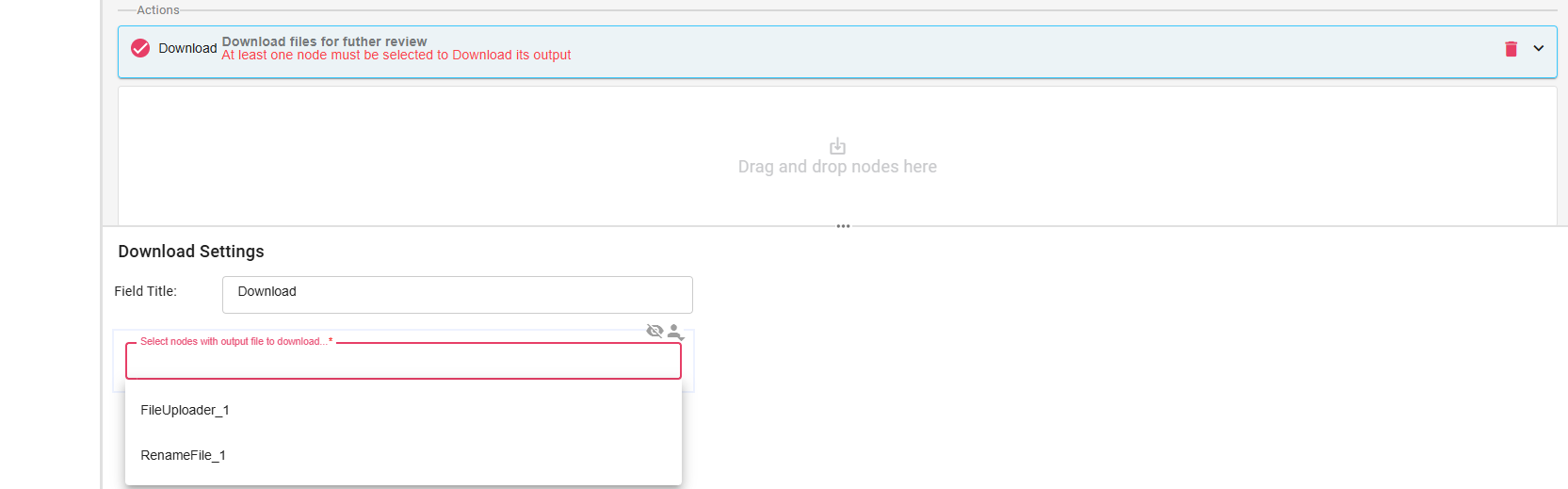
- Download: Adds a Download button to the form. When a node is associated with it, the user can download that node's output directly from the form.
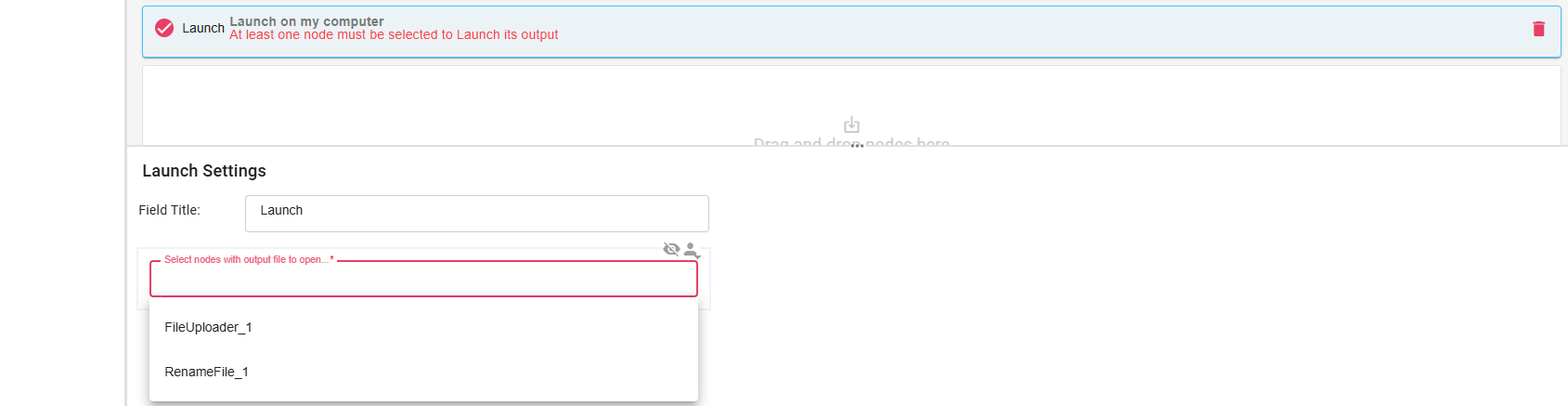
- Launch: Adds a Launch button to the form. When a node is associated with it, the user can open that node's output via a browser or via the B2Win Suite Desktop Client (if the client is connected).
Building the Form
Drag widgets from the left panel and drop them onto the canvas drop zone. Each dropped widget renders as an interactive control exactly as it will appear to the user.
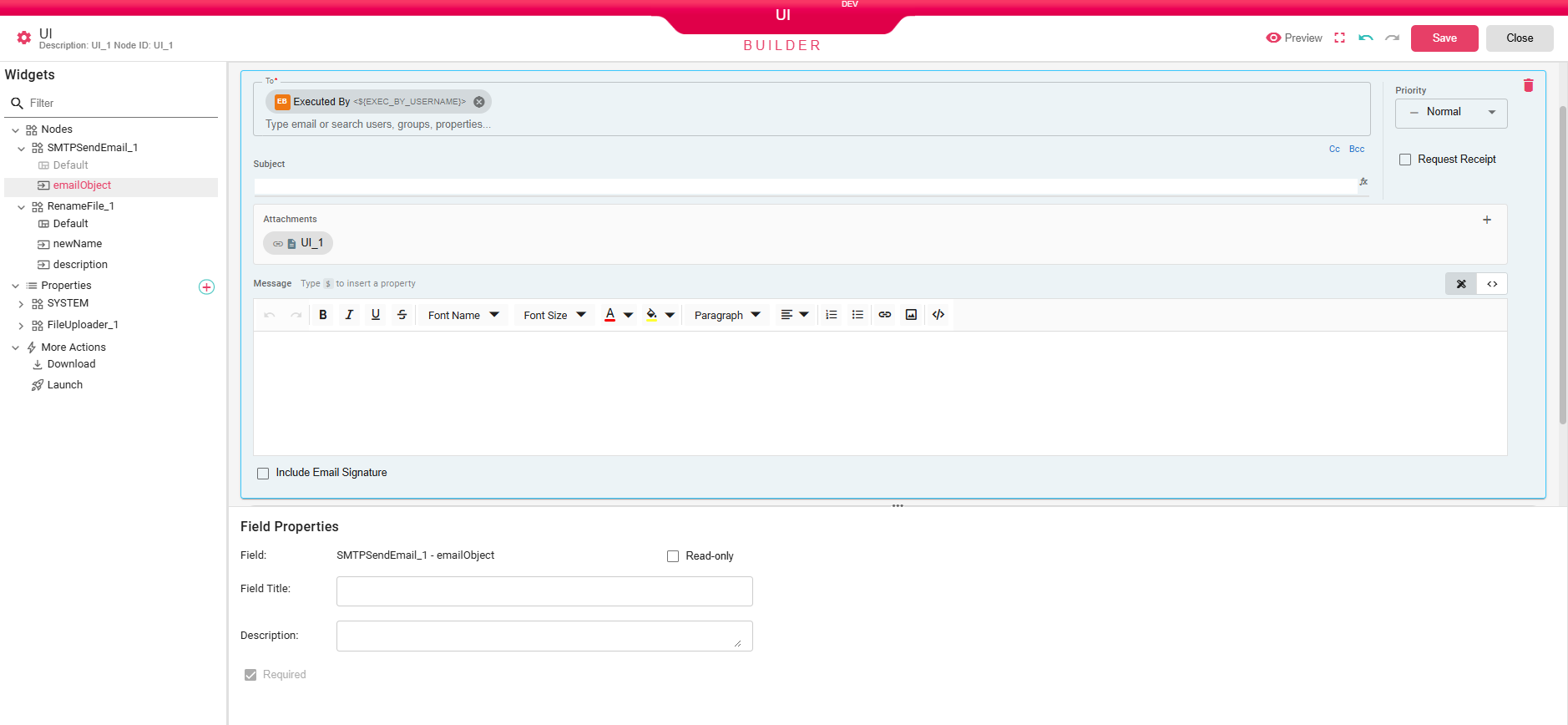
In the example below, the emailObject field from SMTPSendEmail_1 has been dragged onto the canvas, rendering a full email composition form, and the newName field from RenameFile_1 has been added below it as a text input:
Field Properties
When you click on a widget in the canvas, the Field Properties panel appears at the bottom of the screen. It lets you customize how that field is presented to the user:
- Field: The internal identifier of the field (read-only).
- Read-only: When checked, the field is displayed but cannot be edited by the user.
- Field Title: An optional label to show above the field instead of the default field name.
- Description: An optional helper text displayed below the field to guide the user.
- Required: When checked, the user must fill in this field before they can resume the workflow. This checkbox is automatically enabled for fields that are already marked as required by the underlying node.
More Actions
Drag Download or Launch from More Actions to add action buttons to the form. Each action requires at least one node to be associated with it so it knows which output to act on. Select the action widget in the canvas and a Download/Launch Settings section will appear below where you can choose the node(s).