Enhance PDF
The Enhance PDF node applies additional presentation and security attributes to a PDF file produced earlier in the workflow. You can overlay a logo image, set a background, enforce PDF/A compliance, and configure access restrictions without modifying the source document.
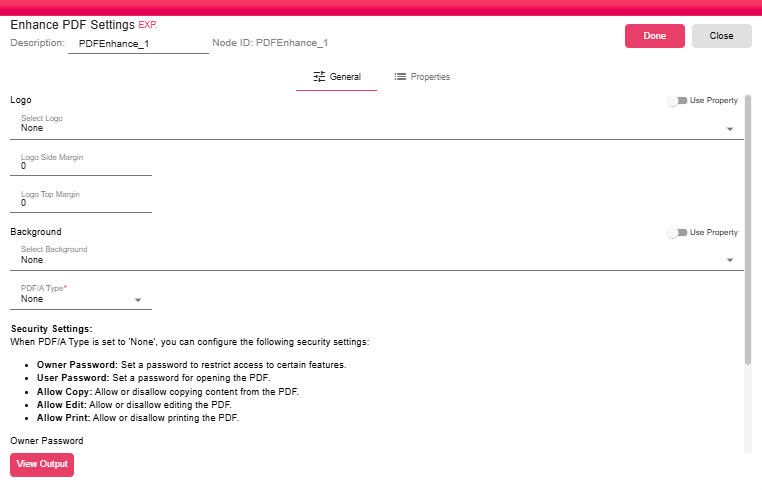
General Tab
Logo
Optionally overlay a logo image on every page of the PDF.
- Select Logo: Choose a logo resource from the dropdown. Set to None to skip adding a logo.
- Logo Side Margin: The horizontal offset (in points) from the edge of the page where the logo is placed.
- Logo Top Margin: The vertical offset (in points) from the top of the page where the logo is placed.
- Use Property: Optionally, you can write the name of a property you want the logo to be read from.
Background
Optionally apply a background image to every page of the PDF.
- Select Background: Choose a background resource from the dropdown. Set to None to skip.
- Use Property: Optionally, you can write the name of the property you want the background to be read from.
PDF/A Compliance
PDF/A is an ISO-standardised archival format that embeds all necessary information (fonts, colour profiles, metadata) within the file, ensuring long-term reproducibility independent of external resources.
- PDF/A Type: Select a PDF/A conformance level to produce an archival-compliant document. When set to None, PDF/A conversion is skipped and the Security Settings below become available.
Note: PDF/A and Security Settings are mutually exclusive — PDF/A does not permit encryption, so the security options are hidden whenever a conformance level is selected.
Security Settings
Security settings are only available when PDF/A Type is set to None.
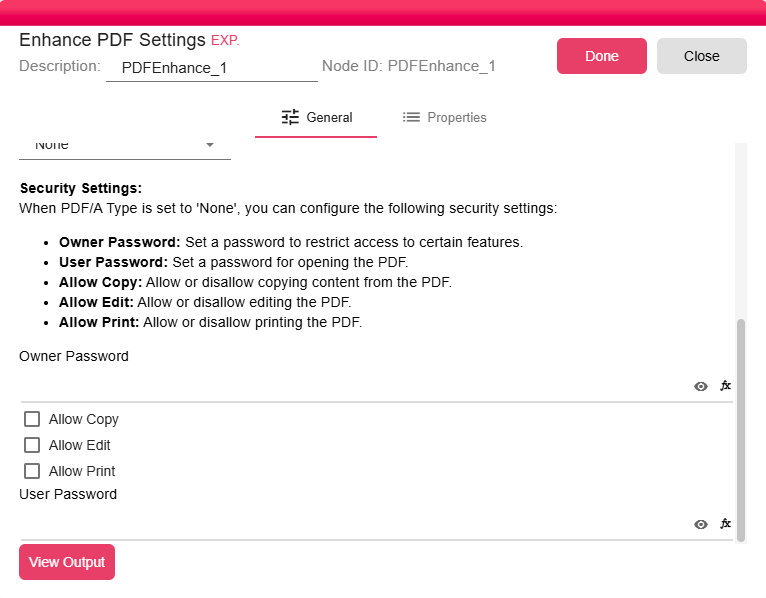
- Owner Password: Set a password to restrict access to certain features. You can also use properties to supply the value as a dynamic expression.
- User Password: Set a password for opening the PDF. You can also use properties to supply the value as a dynamic expression.
- Allow Copy: Allow or disallow copying content from the PDF.
- Allow Edit: Allow or disallow editing the PDF.
- Allow Print: Allow or disallow printing the PDF.
Properties Tab
The Properties tab displays the node's runtime properties, which can be read or set by other nodes and scripts in the workflow.
View Output
Click View Output at the bottom of the settings panel to preview the enhanced PDF output before saving.