Administration
Activating B2Win Suite
In this chapter we will talk about activating B2WinSuite and how to log in. Usually this step is done by the NAZDAQ person installing the product.
Run report to B2Win device
B2Win Suite is installed as a device inside BAAN system, and can be used whenever you want to print a report from BAAN/ERP Ln
- You just need to print the report to the B2Win Suite device
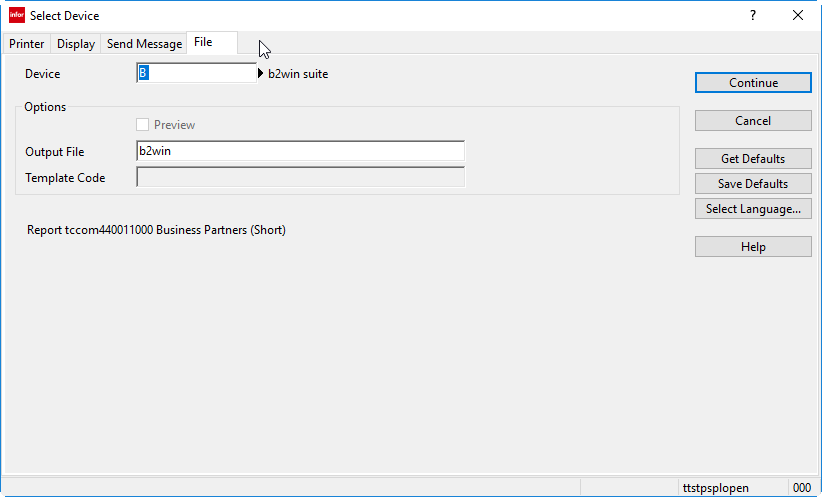
Figure 1 - Choosing the B2Win Suite Device
If this is the first time you run the device from this server, then you will be required to login as admin first to activate the input server
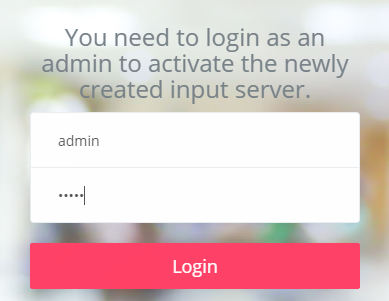
After you logged in, you will be redirected to the System -> Input Server tab

Click on Edit/Activate under the Actions column of the desired server you wish to activate, then turn on the Activated button and click on update

After you have activated the input server, you need to run the report to the device again. This time you will be prompted to login to the server:
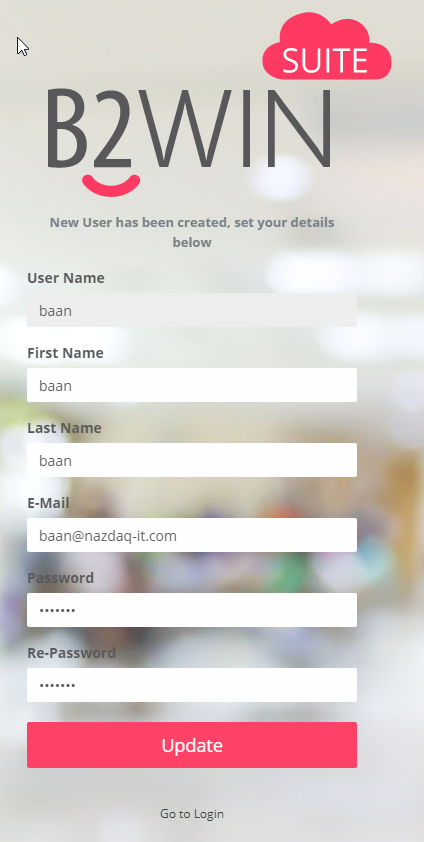
If you wish to login with a different username and password, just click on the Go to Login at the bottom of the form. From now on, your credentials are saved and you do not need to login every time you use the B2Win Suite.
Direct Login to B2Win Suite
In order to login directly to the B2Win Suite system (and not through running a report from your ERP system), you need to have a link like the following https://192.168.1.212:5700 with a user and password. Note that to be able to see all the features you need to have admin access, so user admin needs to be used, or in case you don’t have access to the admin user, you can ask your administrator to create a new user with an Admin role.
The first screen should be:
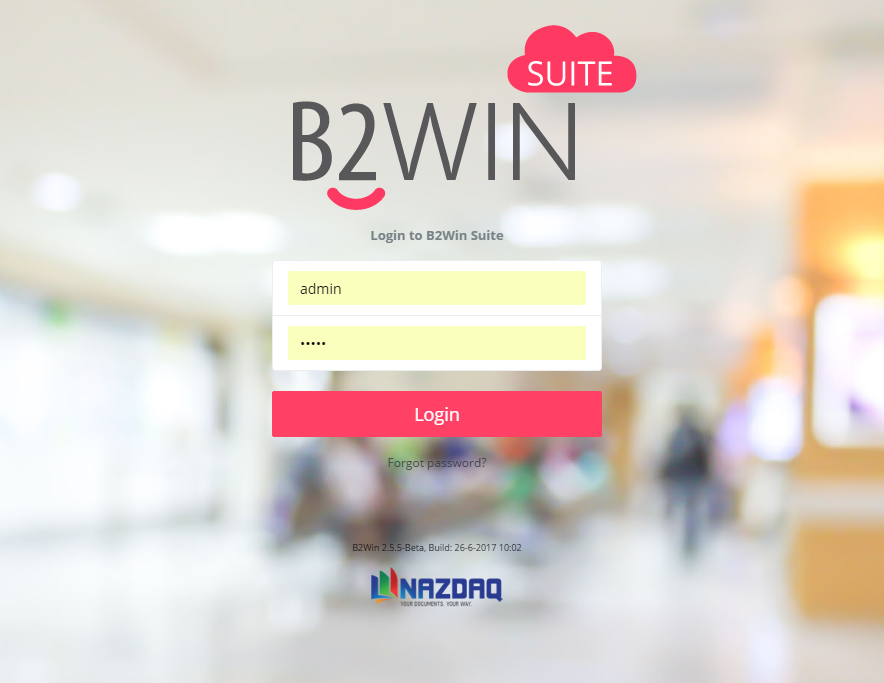
Fill in your admin user and password to login to the system
Reset User password
To reset your password go to: https://SERVERIP:PORT/user/resetpass
(Example: https://192.168.1.212:5700/user/resetpass)
You will have a screen like this:
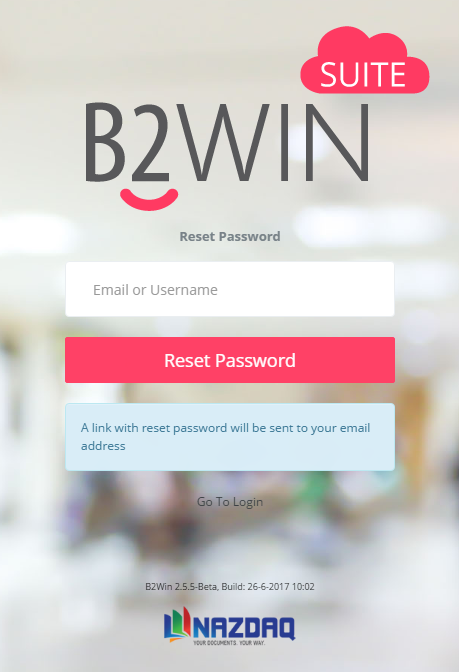
Fill in your email address associated with your account, and an email will be sent to you with a link to reset your password, for example:
Clicking this link will give you a page to reset the new password.
Note: If no email was sent in this case, it could be because you or your administrator still didn’t configure the SMTP server in application.conf, see 0 on SMTP Settings.
Admin can manage all the users in the system, including users that have been created automatically from your Input servers.
You might need to define more settings for some features to work, go to “Configuration -> System -> global settings” chapter to learn more