Properties & States
We talked about the nodes we called the building blocks of a workflow. Sometimes you need to pass more data and this data should be calculated based on previous node or in the current node, or maybe take this data from a trigger outside of the workflow execution, we call these data properties.
In workflow we have number of properties types we have
- Global property
- Node Property
- Input property
We will go now and explain in detail what each one of these means, and also covert the two types of properties, static value and scripting value (Value that changes dynamically)
Global Properties
Sometimes you want to define property with a value and use it everywhere in the workflow, to define a property like this you need to do it in Global properties, to access all global properties, go to the workflow settings dialog and to properties tab:
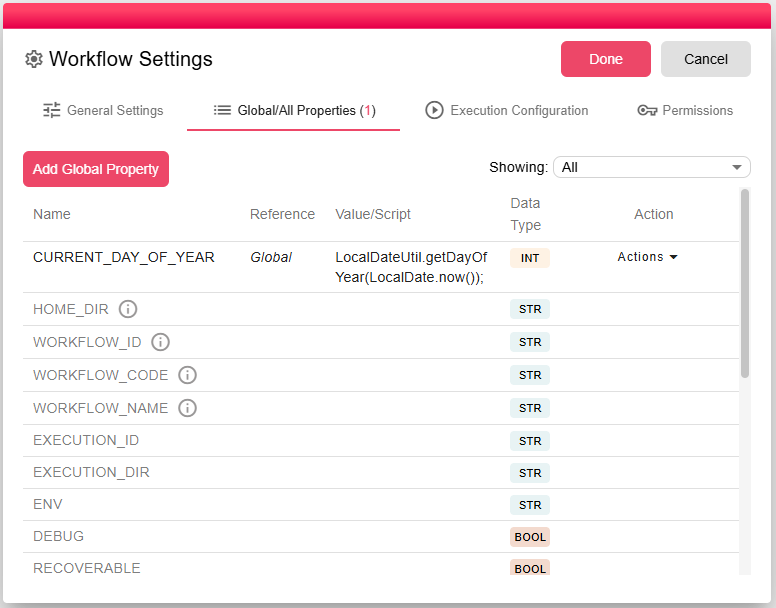
There are two types of properties here, the one that the user defined with black color and can be edited/deleted
and the other is gray, meaning they are system defined properties that can be used and their values are set when the iteration is executed.
The Global Properties get their values when the iteration is created, first thing they are evaluated and added so any node in the workflow can use them.
For example if you have a property that its value is a script like:
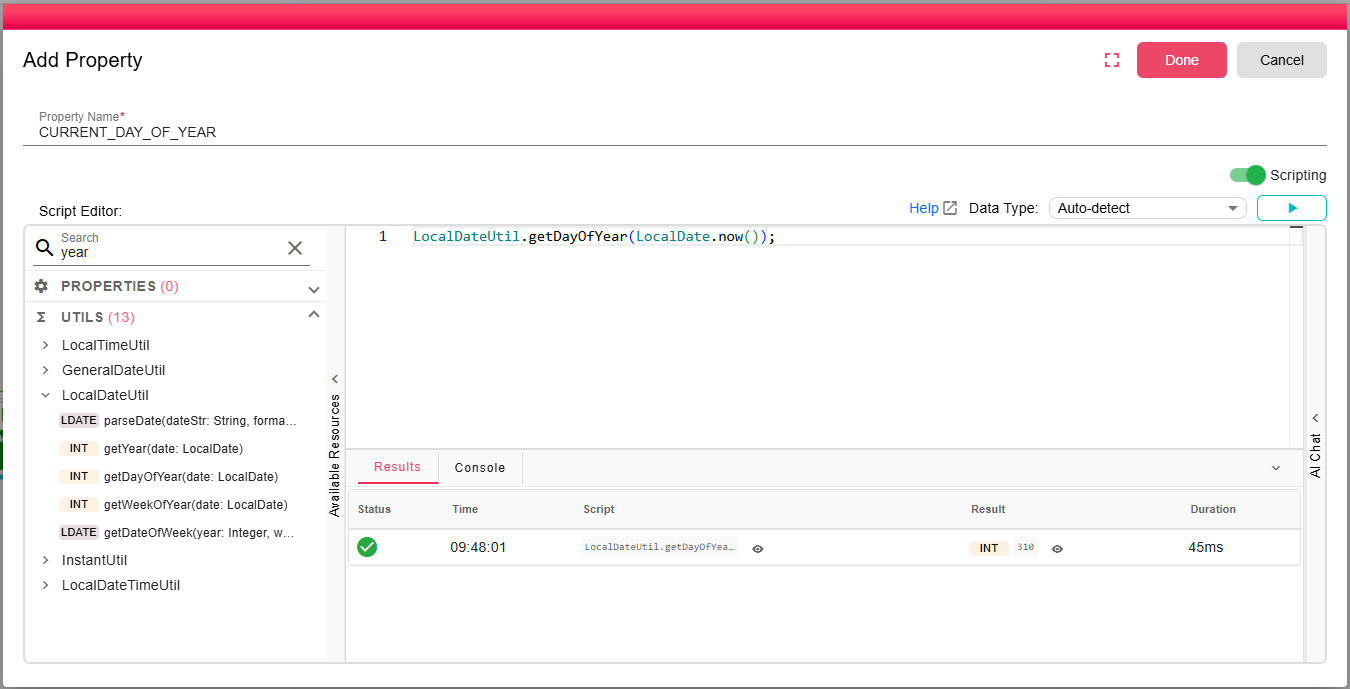
The value which is 310 will be changed each time a new iteration is created, we will cover more about how to use the scripting inside a property, the point here is to mention that Global properties are evaluated in each iteration and each iteration can have different values from the previous one.
Static value properties
Static properties is the default property to define when your creating one, to create a property either Globally or per node you should click on Add property button, and then:
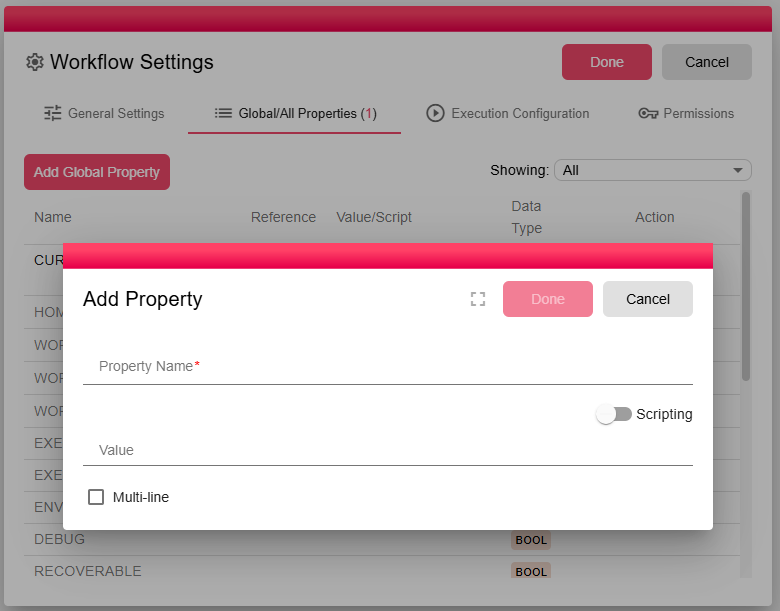
Specify a Property Name, should be only English letters, numbers and underscores are allowed, and then specify the value for this property.
States
In B2Data, States allow workflows to maintain and share data across iterations during their execution. States are particularly useful for nodes that need to "remember" information between iterations, such as tracking the last run time or a value retrieved during execution.
State Scope
- Execution-Level State: States exist at the level of a workflow execution. They persist across all iterations within the current execution.
- Resetting State: When a workflow execution is restarted, all states are cleared unless explicitly configured to be preserved.
Node-Specific States
Nodes can maintain their own state. Examples include:
- Scheduler Node: Remembers the last time it triggered an iteration. This ensures the scheduler doesn't repeat executions unnecessarily.
- Query Trigger Node: Tracks the last value read from the database, ensuring that subsequent executions continue from where the last query ended.
- Custom States: Developers can define custom states in nodes to store specific information that needs to be reused across iterations.
State Persistence
To ensure proper management of workflow states:
- Default Behavior: By default, states are cleared when the workflow execution is restarted.
- Preserve State: If a workflow requires states to persist beyond a reset, you can explicitly configure the workflow or node to preserve the state.
For example:
- A scheduler node preserving its last run timestamp ensures it resumes operation seamlessly after a workflow restart.
- A database query trigger maintaining the last retrieved value prevents duplicate processing of previously fetched data.
Practical Use Cases
- Tracking Last Execution: Schedule-based workflows can avoid re-executing on past triggers.
- Incremental Data Processing: Query nodes can process only new records by remembering the last retrieved ID or timestamp.
- Custom State Management: Developers can define properties to maintain counters, flags, or any stateful data across multiple iterations.
Resetting the State
When restarting a workflow:
- Default Reset: All node states are cleared, and the workflow starts fresh.
- Preserve State Option: Allows states to persist across restarts, ensuring seamless continuation of workflow execution.
By leveraging States, B2Data workflows become highly adaptable, enabling advanced functionality like incremental processing, intelligent scheduling, and dynamic state sharing between nodes.