Smart Engine (Admin)
Smart Engine is part of the B2Win Suite Platform, it allows companies to automatically email, fax, print and archive documents (i.e. Purchase Orders or Invoices). This powerful engine can handle any output coming from Baan and ERP Ln by performing the following:
- Split range into multiple documents
- Recognize the business partner for each document.
- Match it with business partner’s e-mail/fax
- Deliver each document using the business partner preferred channel (e-mail, fax, print, archive)
Parsing of output is done through Keys. In the Smart Engine you need to define the Split Keys type (like "Purchase Order", "Invoice") and the value of this key by setting the position of it in the report content. The way Smart Engine works is that it needs to know the location of the key (what line and what column) in the report. In standard Baan reports, the key is always located in the same exact location in the first page, and has the same location in page two and higher. Defining the exact location of the key is a mandatory step for the product to begin to parse the output properly. In case you want to use address books then you need to set the BP key which is the business partner id that can be in the report content or can be fetched from the ERP database.
Each business partner can have multiple address books and in each address book you can set multiple contacts. In the smart engine configuration, you can set the address book that you want to fetch the contacts from. You can set multiple address books in one report and the smart engine will get you all the contacts.
Once the keys are properly defined, then certain variables are automatically defined. Such examples of variables are <DOCTYPE> (generates "Purchase Order", "Invoice" and so on) and <DOCUMENT>, which generates the order number (203456 as in the above example). These variables can be concatenated and used with other free text for the purpose of producing meaningful message bodies, email subject, related attachments and populating unique file names for the output. For a full list of variables available check the Variables Chapter.
Once the key is picked, Smart Engine will pick the business partner data from the pre-setup address book in report setup. And the distribution will be performed according to the preferred channel of the current business partner.
Smart Engine works in a one-by-one mode where the user is prompted for every order before it is sent. Alternatively, it works in a full-automatic mode where all orders are e-mailed, faxed, printed and archived based on pre-defined logic automatically.
Report Setup
Print your report from your ERP system to B2Win Suite, through the Smart Engine device. It is recommended to print a range where at least one document contains more than one page, in order to be able to set the Split Keys first and other pages.
After you set B2Transform, B2Design and all your other settings in B2Distribute, you need to activate the Smart Engine switch in order to enable all related settings.
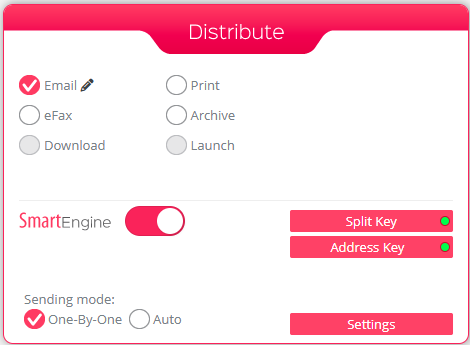
The following are all the settings that are related specific to the Smart Engine:
Split Keys (mandatory)
Split Key is the position of some text in the report that Smart Engine will split the report according to it. Smart Engine cannot be activated without assigning the Split Keys. Click on Split Keys to mark the key position

Mark First/Other Page Key: Click on mark to assign the position of the keys that Smart Engine will split the report content according to it.
You must mark the first page key at least in order for the Smart Engine to work.
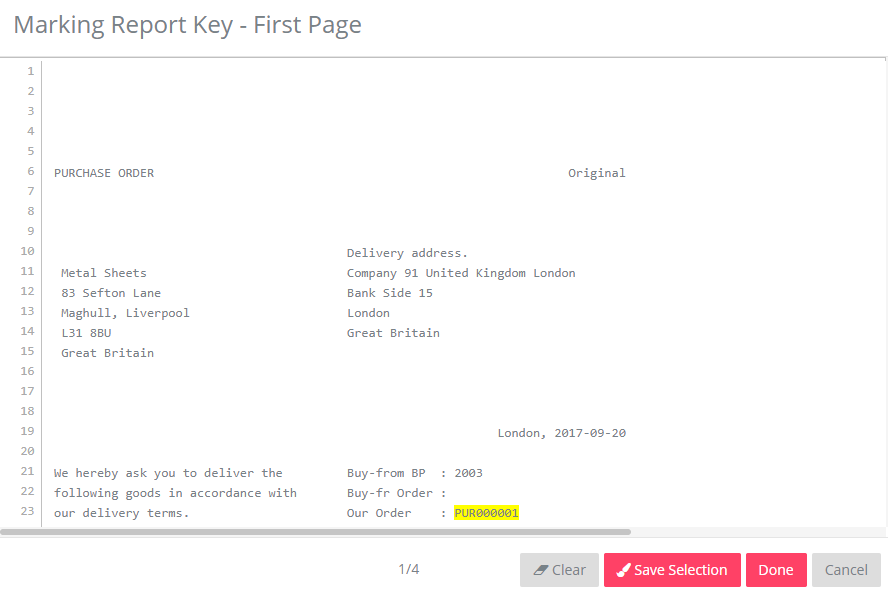
Note that in case you mark only the first page key, it’s assumed that the other page key appears in the same position as the first page.
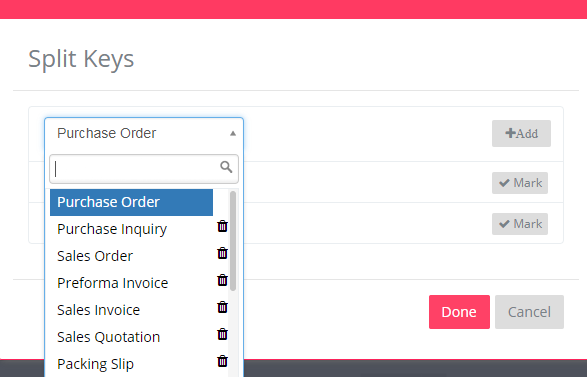
You can choose the Key Type from the list. In our example above it’s “Purchase Order”. In case you can’t find the Key Type you need in the list, then you can click on the Add button and add a new type to the list.
Note that choosing the Key Type is not mandatory.
When done setting the Split Keys a green circle on the Split Keys button will appear to indicate that the split keys are set.

Address Books
You can insert your business partners, contacts and address books to B2Win Suite Platform or import this data from your ERP system, in order to be able to send each document to the matching BP email address or fax number according to the BP’s preferred distribution channel defined in the contact.
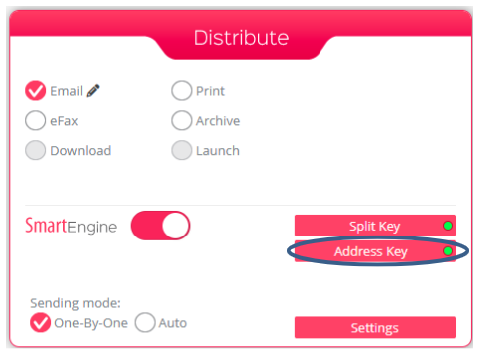
First set the type of your business partner that you wish to fetch. Then you need to define an address book depending on the business partner. You have two options to set the BP code. One is to mark the position of the BP code in the report text.
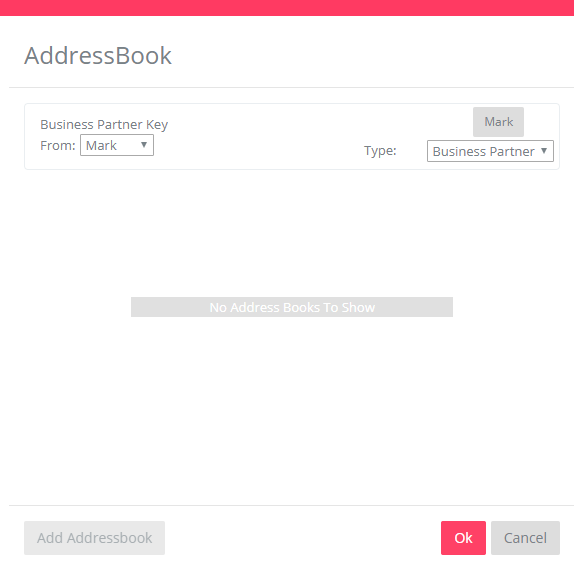
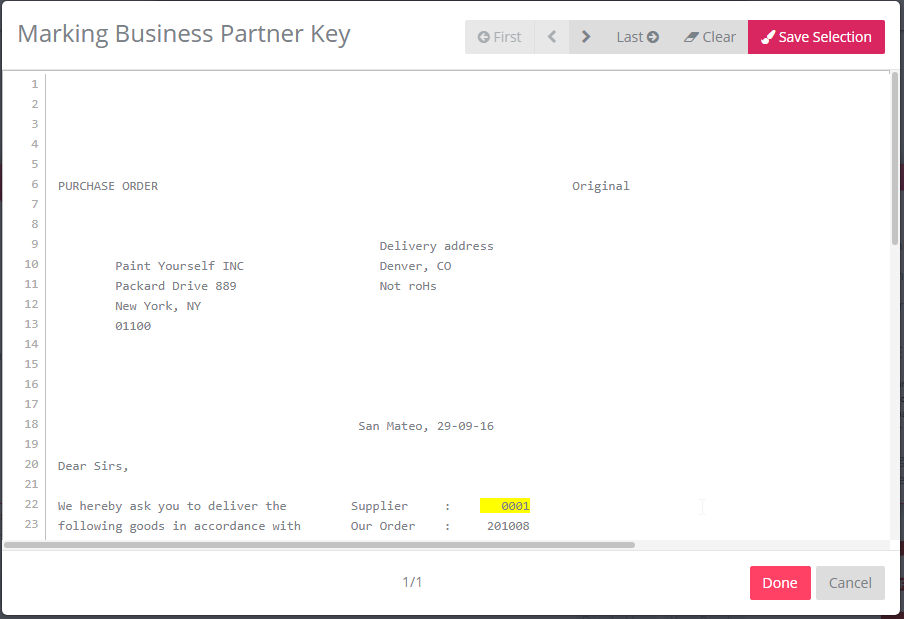
Click on the “Mark” button and set the position of the BP id in the report content. Then click on “Save Selection” and then “Done”.
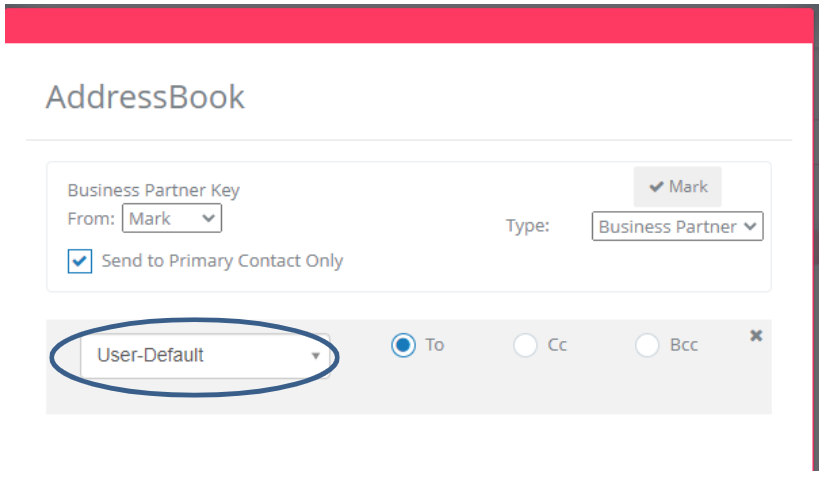
Now select your address book. Check Addresses Chapter for more info on this subject.
If you want the address book selection to be dependent on the user running the Smart Engine, then you should select the User-Default address book from the list. This way the Smart Engine will use the address book defined in the user’s defaults tab in the user profile for the user that initiated the current run.
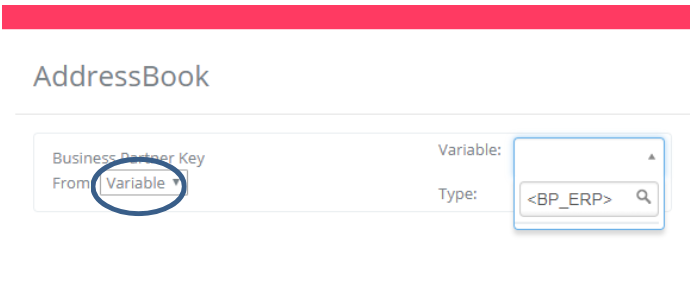
If the BP code is not in the report text then you can use set a database variable to fetch the BP code and use it here:
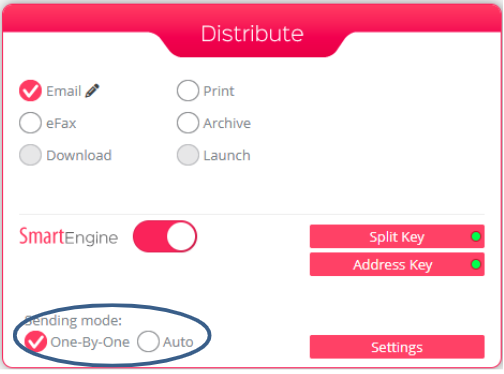
Sending Mode
Check the “One-By-One” option so that when running the engine, it will prompt and pop up a “One by One” interface before sending each document to allow the user to change some settings. Otherwise if you check the “Auto” option, Smart Engine will run on the whole report and distribute all documents according to the report settings without any prompting.
Send Log
You can find this option when you click on settings button in B2Distribute window, then in the first tab “General”, you will find the option “Send log by email”
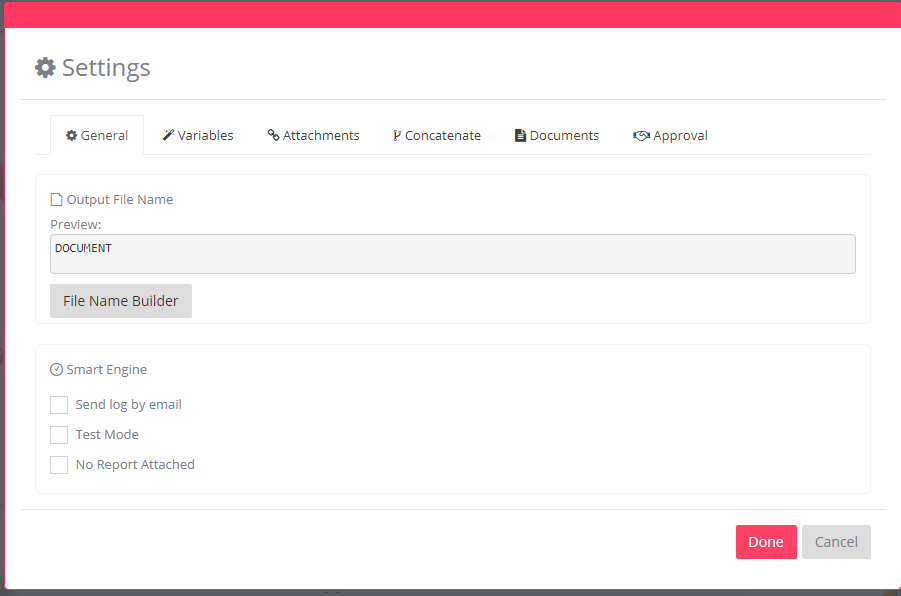
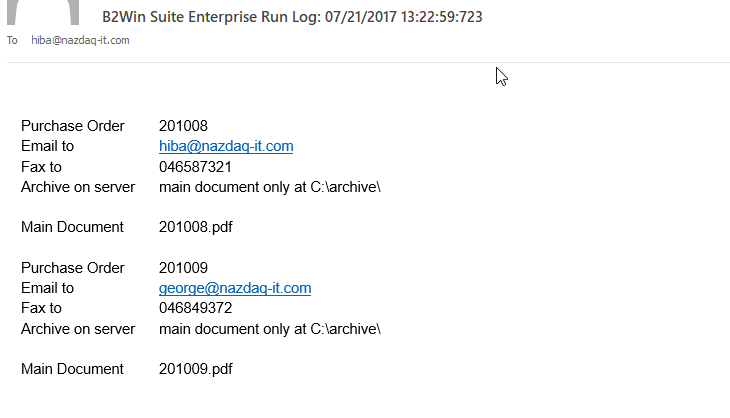
When this option is checked then at the end of each Smart Engine run, the executor of this run will get a log email. This email describes the actions done on each document with a description of the errors and warnings if any exists.
Example of a log email:
Test Mode
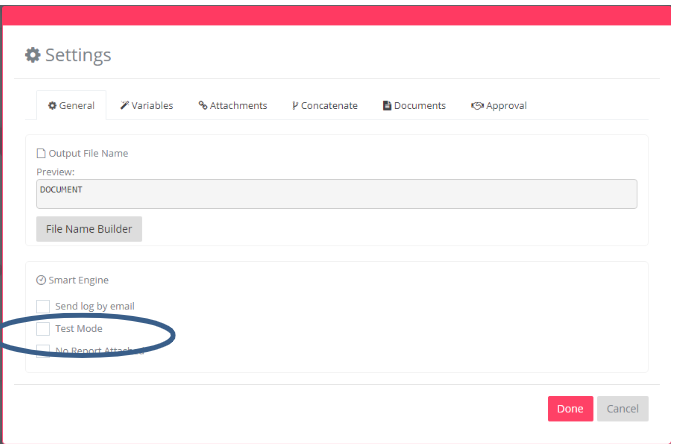
Run in “Test Mode” if you want documents to be sent to the user running the Smart Engine instead of sending it to the email addresses defined in the report settings. This is useful when you are still testing the report.
Subject of the e-mail in this case will contain the original recipients that were supposed to get the email.
You can find this option when you click on “Settings” in B2Distribute and then go to “Test” tab.
Smart Engine Variables
In addition to the different variables that are available in the B2Win Suite (More in chapter “variables” in administration manual) the following variables are available when we use the smart engine:
- <BP_CODE> - The business partner code
- <BP_NAME> - The name of the business partner
- <BP_ADDRESS> - The address of the business partner
<DOCUMENT>- The document key upon which the split was made, for example the purchase order number.<DOCTYPE>- The document key type that was used in the splitting process, for example: “Purchase Order”
Those variables will not work if the smart engine switch was off.
Using the Smart Engine
Application Interface
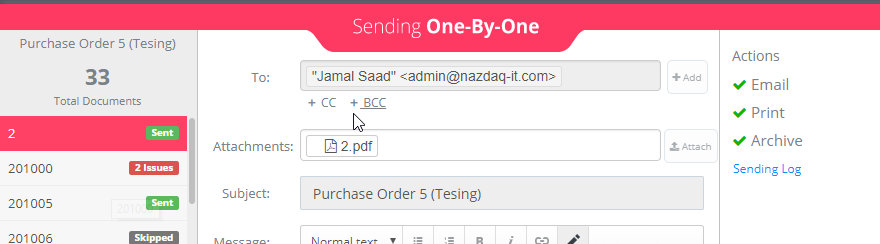
Once the browser window is fully loaded, B2Win Suite Application page will be opened, with the One-By-One interface, since the admin already configured this report in order to be displayed in One-By-One mode.
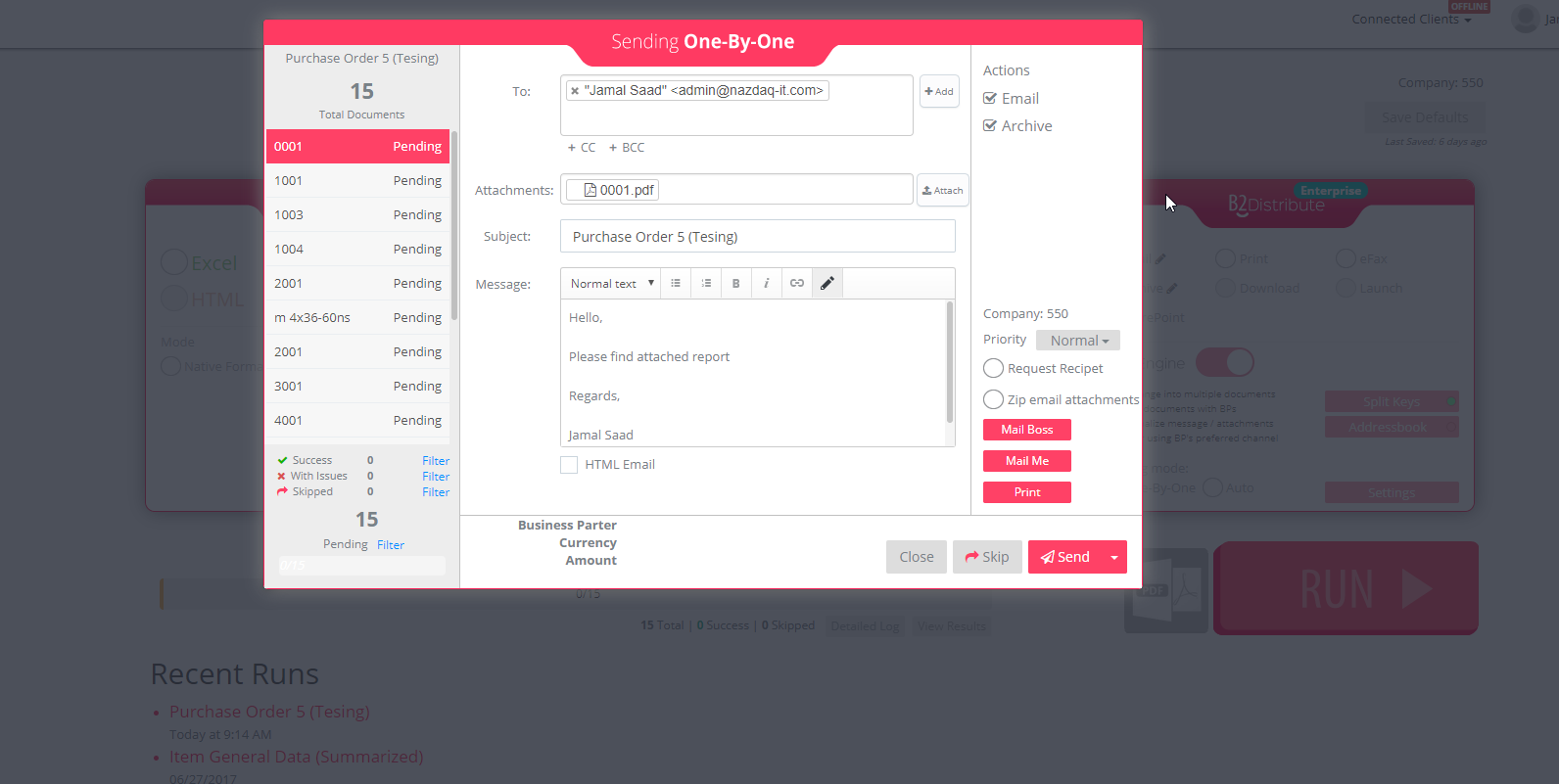
Figure 1 - B2Win Suite One-By-One Page
Documents
When the Smart Engine process your report, it should split the report according to the marked key you specified or your admin already configured, and you should see in the left side the list of documents that were generated, on each document you can specify what you would like to perform: Sending or skipping, and you can see what actions is specified with each document (Archive/Email/Print/…)
Sending
The user have 3 sending options:
- Send document one by one checking each configuration
- Send all pending without the skipped documents
- If you skipped something before and you wish to send them now , you can send all skipped

Skipping
By clicking on the skip button you will be directed to the next document to configure while this one will be signed as skipped, you can return to it anytime change the configuration and send it

View Logs
Once sending is finished, whether completed or aborted, you can review which documents were sent successfully, aborted, or skipped. On the right-side panel, click Sending log to open the detailed log for each action performed for each document:
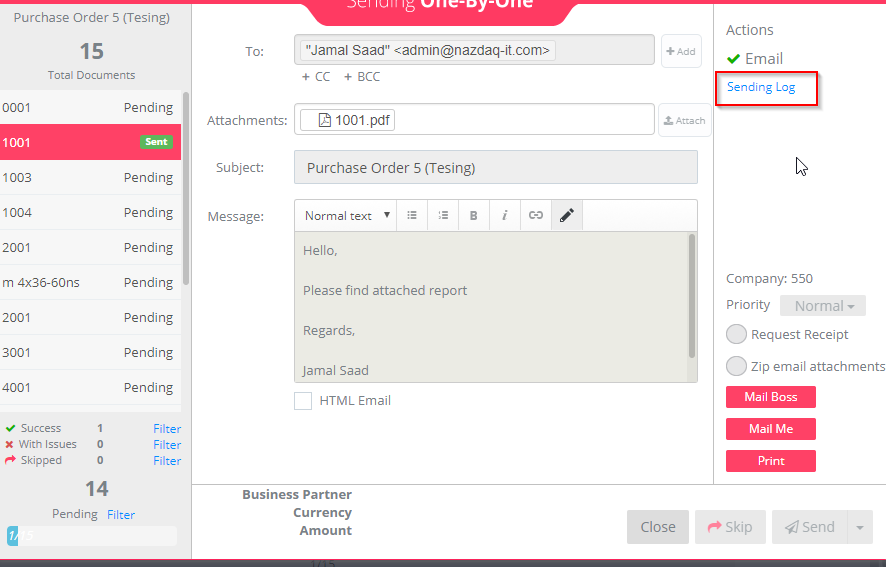
or by clicking on the View Result button under the Progress bar:

Retry Actions
If something went wrong while sending the document, could be with archiving/printing or sending, you can resolve that issue after you fixed the problem, the issue can be for example:
- Printer is offline
- Archive path doesn’t exist
- Network share can be down
- B2Win client is not connected
You can resolve the issue from two locations:
From One-By-One interface right bar:
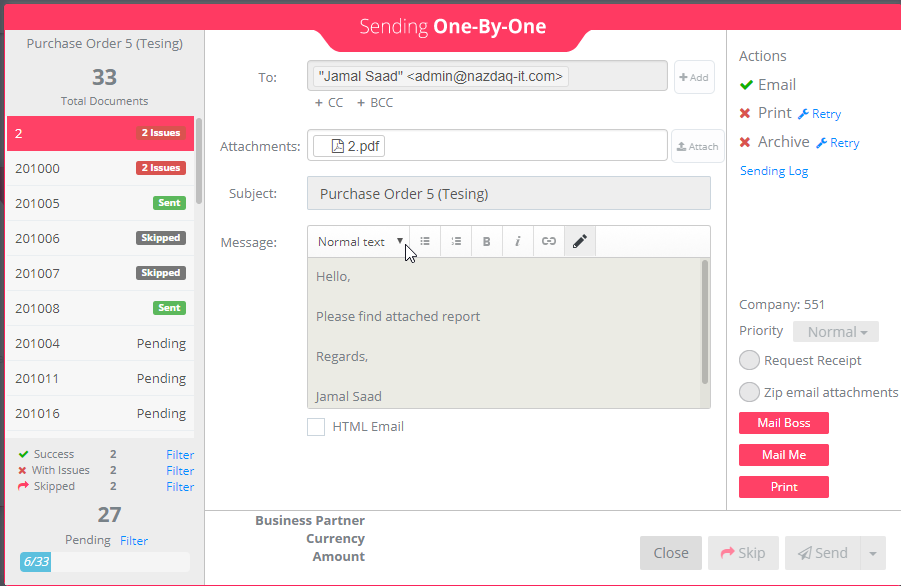
The two documents on the left has failed with two issues:
When hovering on the failed icon at the right side:
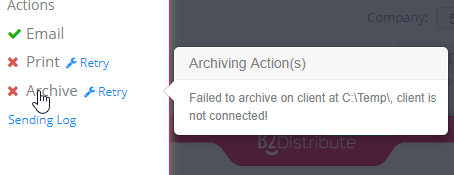
You will see the error that occurred while sending this document, in this case the error is that the client is offline, we connect the client and click on Retry button, to retry that same action:
Both actions are now resolved.
Extra Actions
Mail Boss
The mail boss button will send a copy of the document to the supervisor that is defined in the user Profile-> Settings-> E-mail Settings -> Supervisor E-Mail.
You can also add Mail Boss in the To, Cc and the Bcc fields.

Mail Me
The Mail Me button will send a copy of the document the email that is defined in the user Profile-> Email.
You can also add Mail Me in the To, Cc and the Bcc fields.

Print
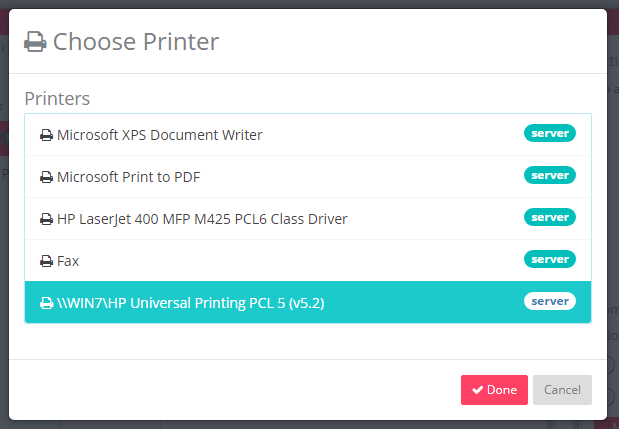
When clicking on the print button

It will ask you to choose a printer located on the client or server to print the document.
Closing One-By-One
When closing One By One a modal like this appears
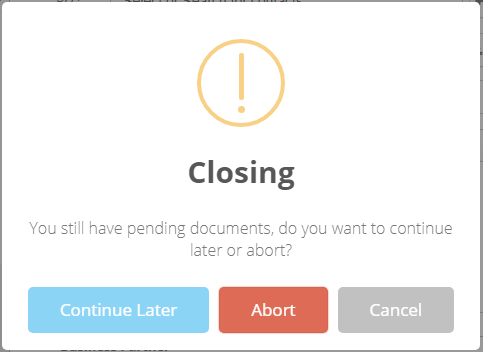
Where you have 3 options:
-
Cancel: you will return the one by one modal
-
Abort: it will abort all pending and skipped documents and close the modal
-
Continue Later: it will close the modal, but you can continue later from where you last stopped by simply clicking on the Run button again for this run