B2Distribute
Actions
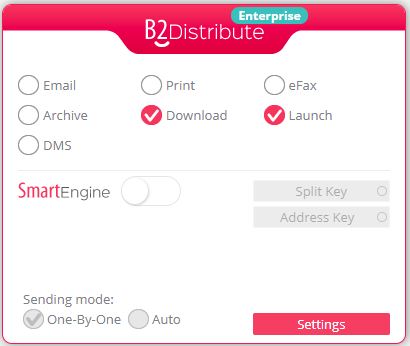
You can choose the way to distribute the report conversion output, there are many actions; You can select more than one action and all selected actions will be performed at once when the conversion process is finished.

Note: You should specify at least one action when converting; otherwise you can't convert a report.
Email
Send the output file using your mail client if you connected to the B2Win Client or sending through SMTP (depending on your Profile -> settings -> sending Type: if sending type is Default it will chose from the system defaults as you can set it to SMTP or client).
You can click on the browse button to open the sending settings window.

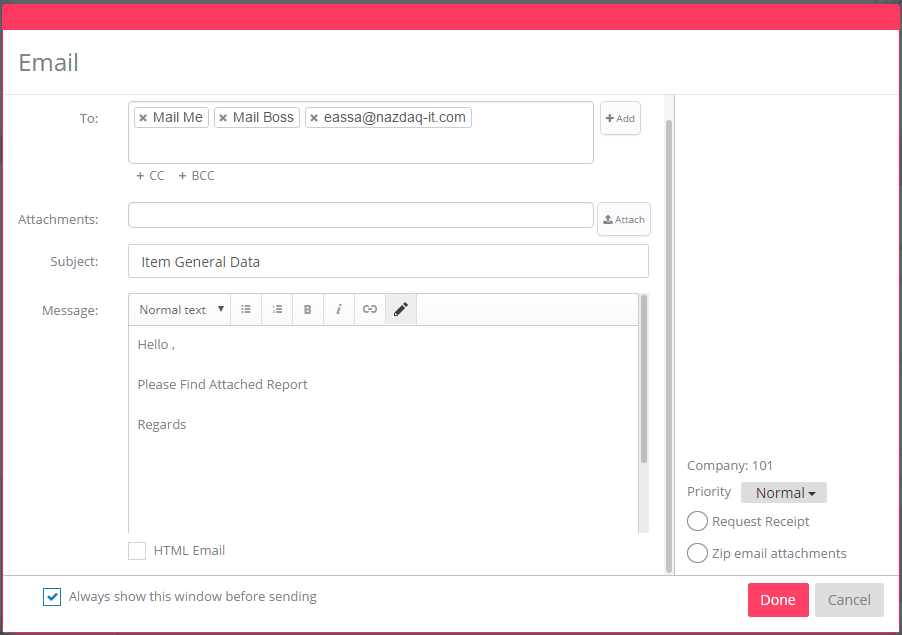
Mail Boss: will send the email to the boss (supervisor) as defined in Profile -> Settings -> Email Settings.
Mail Me: will send the email to the logged in user's email defined in the user profile.
Zip Email Attachment: Send all attachments compressed as a zip file.
Priority: just like the outlook you can set the priority to high, normal or low
Request Receipt: A delivery receipt confirms delivery of your email message to the recipient's mailbox, but not that the recipient has seen it or read it. A read receipt confirms that your message was opened.
To: In this field you specify to which email addresses you want to send, as you can click on the Add button and you can add emails from groups, users or system global (such as yourself or your supervisor as defined in the system)
Attachment: you can add attachments from your computer while the client is connected, or you can add them from the server (only from the white path list which is defined in System -> Settings -> System)
Message: can be an html or simple text, in order to make it an html message make sure "HTML E-Mail" is checked.
Always show this window before sending: You can specify if you want this send modal to open up each time before sending by checking this option on the left bottom corner.
Done: will save all the above setup the user has done for the current run.
Print
Print the output file on the selected printer. You can print it to multiple printers.

In order to activate the print feature, you need to check this option in B2Distribute App. Then click on the pen icon to open the print settings. Then click on "Add New Printer".

Printer can be on server or on client (You can select client printer only if the B2Win Client is connected).
Include images while printing when it's not selected then the output will be printed without the logo and background.
Print all attachments when checked the application will print the output file generated and all attachment files set in the attachment settings.
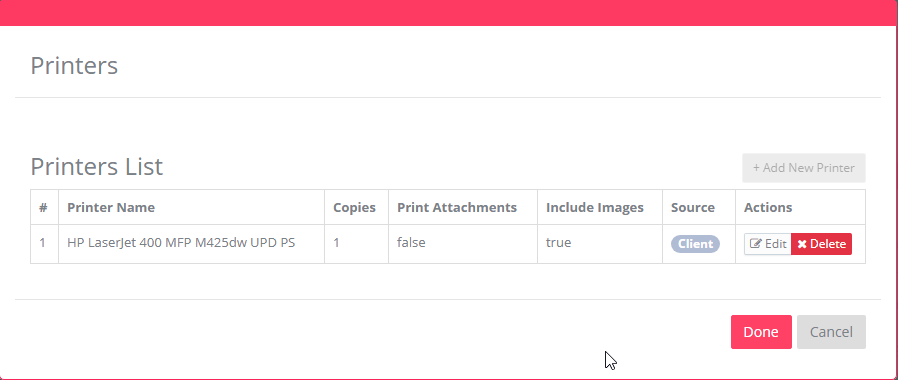
If the user does not add printers, the file will be printed to the default printer set in the user profile (Profile -> Settings) and if this one is not set, output will be printed to the default client printer in case B2Win Client is connected if not then to the server default printer.
eFax

Click on the pen icon next to the eFax to the settings window.
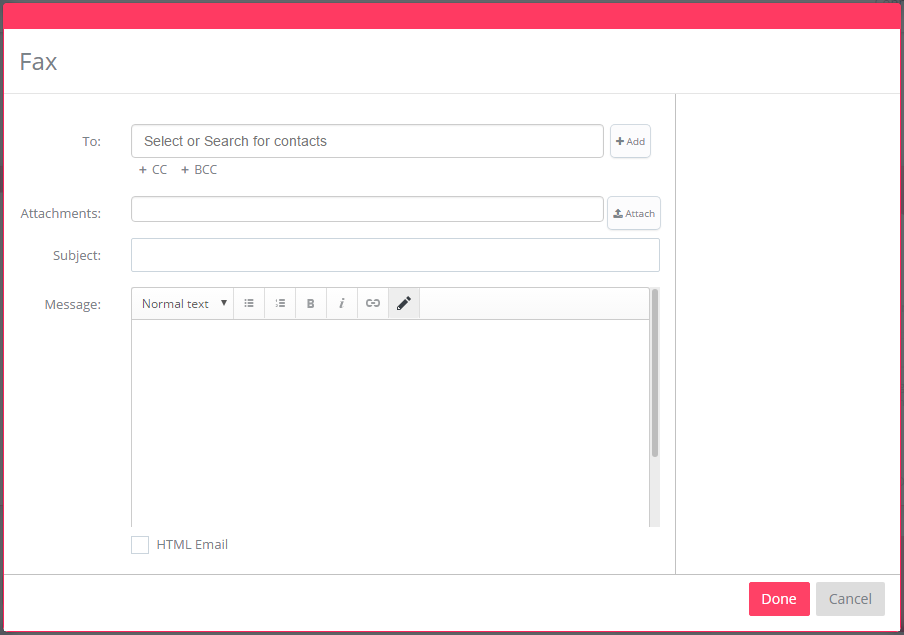
The eFax will be sent to the recipient specified in the To, Cc and Bcc field, as you can add an attachment and add a custom message.
Archive
Archive the output file either on Server or on Client (B2Win Client must be connected).
You can archive also on FTP and SFTP (secure FTP - SSH), and can have more than one archive destination.

Click on the pen next to the archive to open the archive settings. Then click on "Add New Archive"

Archive Types:
On Server Path
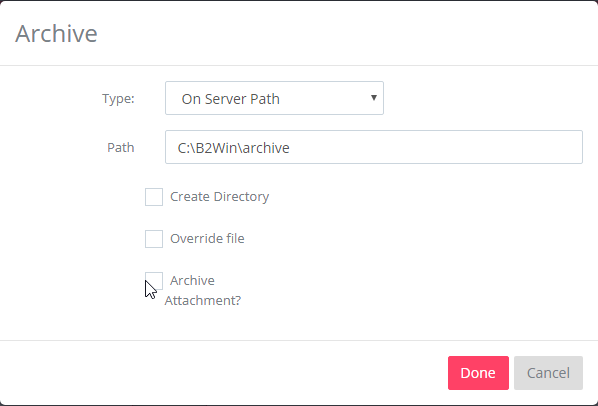
Path is the archiving path on the B2Win Suite server
Create Directory – when this option is checked then if the archiving folder does not exist, B2Win Suite will create it automatically.
Override file – when checked then if the output file already exists in the archiving folder, B2Win Suite will override it. If not checked then in this case it will not be archived.
Archive Attachments – when checked then attachments also will be archived.
Local Client

Path is the archiving path on the client. (B2Win Client should be connected)
Archive Attachments – when checked then attachments also will be archived.
FTP
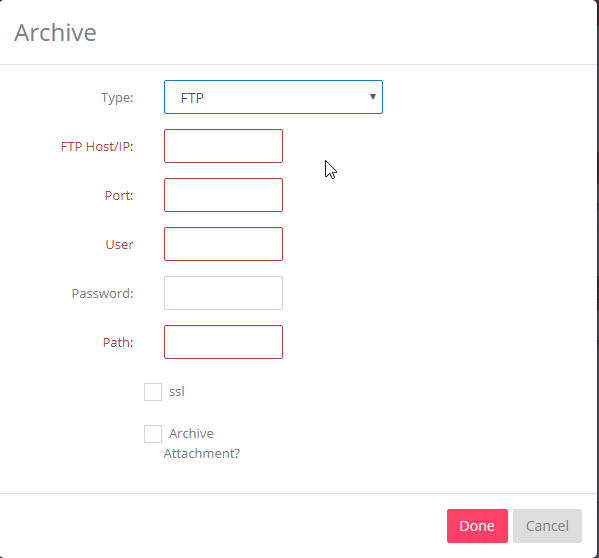
FTP Host/IP and Port to connect to the archiving server
User and Password – Login details
Path – archiving path on the server
SSL – connection type to the archiving server
Archive Attachments – when checked then attachments also will be archived.
SFTP
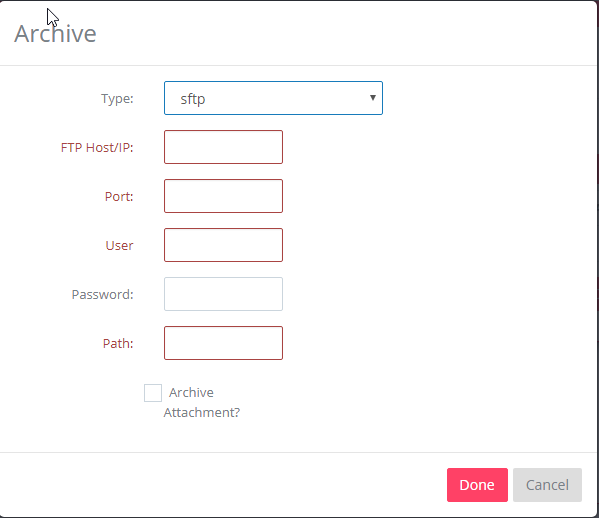
FTP Host/IP and Port to connect to the archiving server
User and Password – Login details
Path – archiving path on the server
SSL – connection type to the archiving server
Archive Attachments – when checked then attachments also will be archived.
Note that for all archiving types when Archive Attachments is set then you have the option to add prefix and suffix to the attachments when archived.

Download

The converted file will be downloaded to your machine through the browser.
Launch

Launch works only When the B2Win Client is connected, the file will be downloaded to your machine and opened in the associated program.
Settings
Output File Name
In order to set the output file name for this report open the settings by Clicking on the Setting button in the B2Distribute App then on the File Name Builder button in the General tab.
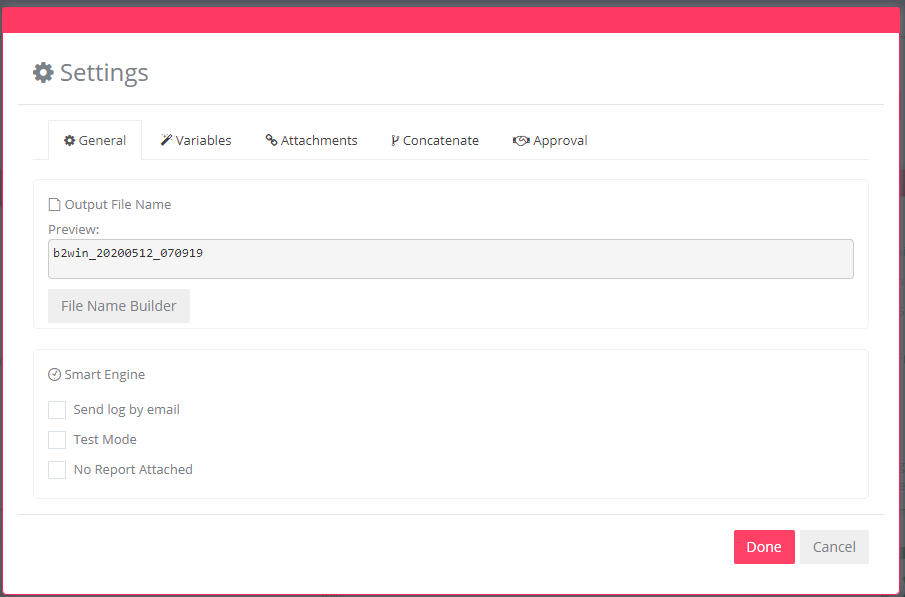
Now you can choose the parts of the file name. You can add Free Text parts or variable parts from this list:

- USER – the logged in user name
- REPORT_DESC – The current report description
- COMPANY_NO – The company number in the ERP system that the report was printed in.
- COMPANY_DESC – The company description.
- TIME – The time of the conversion, and then you can choose the time format.
- DATE – The date of the conversion, and then you can choose the date format.
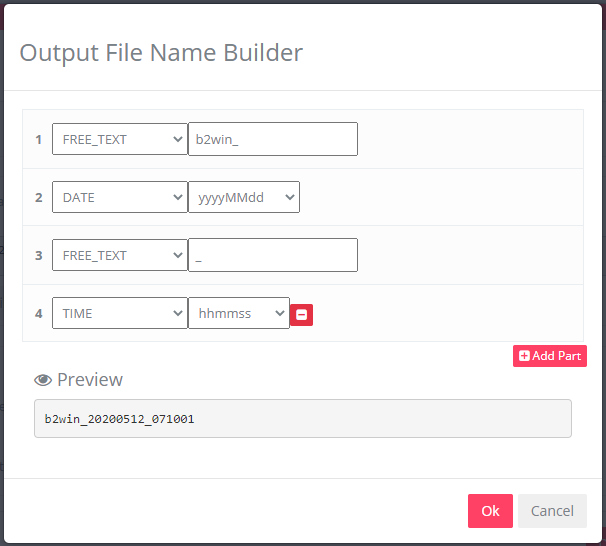
In this example above the file name consist of 4 parts: free text, today's Date in an yy.MM.dd format, another free text and the time in a "hhmm" format, you can see in the "preview" how the output file will be in our example the file name is "B2Win__16.02.02__1602", you can remove the last part by clicking on the red minus next to it, or add parts by clicking on the "Add Part" button.
Custom Variables
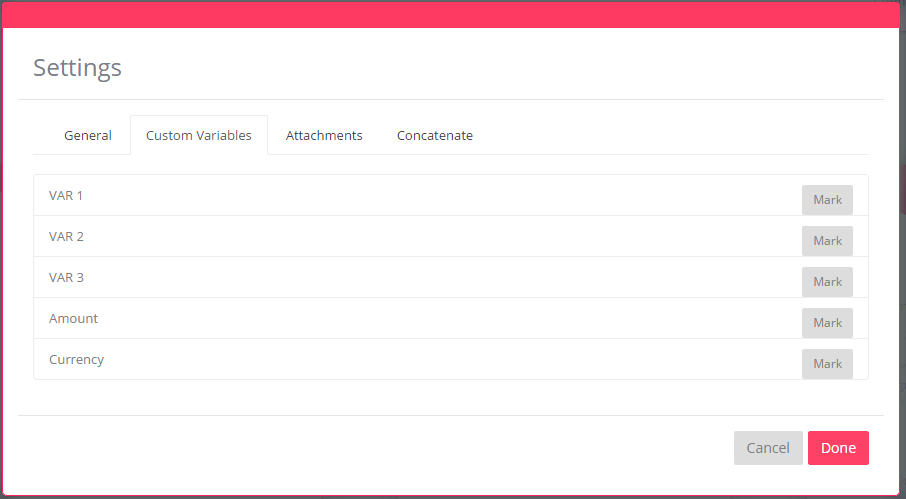
You can define 3 variables, amount and currency. Those variables can be used to set the attachment names, archive folders, archive attachments prefix and suffix, in SharePoint and in email message and subject.
Define these variables by clicking on the 'Mark' button and mark your own custom variable.
For explanation on the Variable Usage check the Variables Usage section.
Custom variables are supported only with External Reports.
Attachments
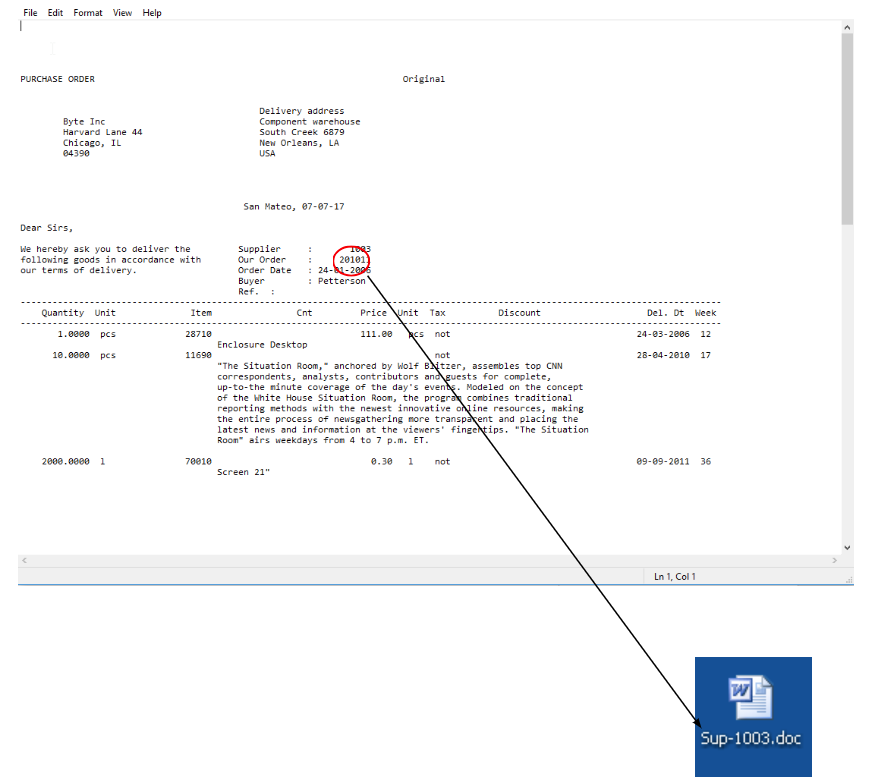
This is good for attaching fixed files like "terms and conditions" for every Purchase Order, or other partially derived files from a certain part of the report. An example for that will be a specific word document for every supplier, where the name of the file will be SUP-{supplier number}.doc and will be attached to every run of B2Win Suite.
Concatenate
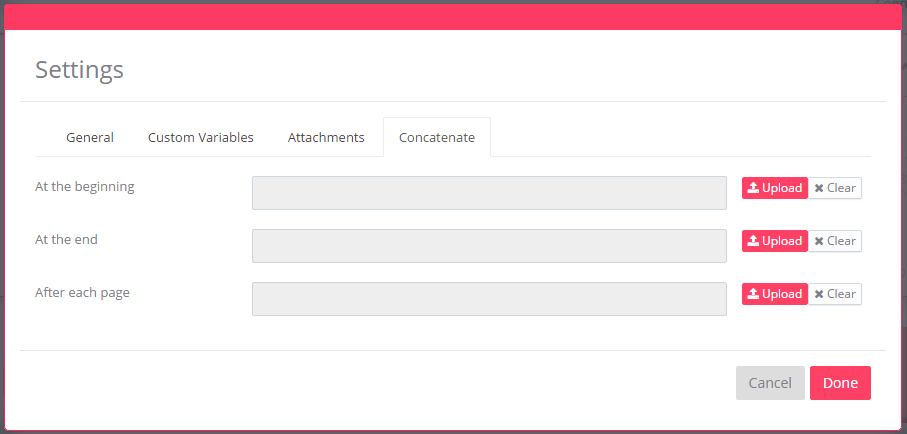
This feature only works with pdf, where you can concatenate another pdf to the executed report, you can concatenate an external pdf to the beginning, the end and after each page.
Variables Usage
Variables can be also used in the e-mail message and in the external attachment names as in the example.
If you wish to send an external attachment together with the output produced from Baan, you need to define its location and the pattern of its name in this form.
For example, you can send an AutoCAD file from your Novell/NT related to the item number of a specific Purchase Order.
The following is the full list of variables that can be used in the e-mail message, subject, body variable field, archiving path, the file name and the pattern field in the multiple attachments:
<USER><REPORT_DESC><COMPANY_NO><COMPANY_DESC><TIME:{FORMAT}><DATE:{FORMAT}>VAR1VAR2VAR3AMOUNTCURRENCY
Time formats:
- hh-mm-ss
- hh-mm
- hh.mm.ss
- hh.mm
- hh_mm_ss
- hh_mm
- hhmmss
- hhmm
Date formats:
- yyyy-MM-dd
- yy-MM-dd
- yyyy-MM
- yy-MM
- MM-dd-yyyy
- MM-dd-yy
- dd-MM-yyyy
- dd-MM-yy
- yyyy.MM.dd
- yy.MM.dd
- yyyy.MM
- yy.MM
- MM.dd.yyyy
- MM.dd.yy
- dd.MM.yyyy
- dd.MM.yy
- yyyy_MM_dd
- yy_MM_dd
- yyyy_MM
- MM_dd_yyyy
- yy_MM
- MM_dd_yy
- dd_MM_yyyy
- dd_MM_yy
- yyyyMMdd
- yyMMdd
- ddMMyyyy