Reports
B2Output Reports
To use B2Win Suite you need an input report with its configuration, in this chapter we will cover what is the report and how to change or configure the settings for each report that came from your ERP or was uploaded manually.
When printing to B2Win Suite a new report that has never been printed to it before, the system will create a new Report entry in B2Win Suite which will have all this report settings, defaults and designs.
Reports
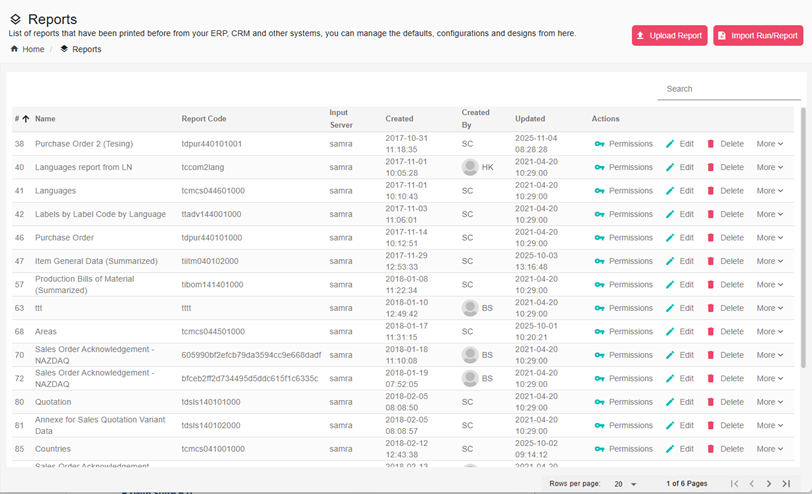
You can list all the reports you have in the system (The reports that has been used for one time or more). We will cover more on how to upload a report manually later on.
To access the reports list, from the left side menu click on Reports and you will see all the reports in a list view, for example:
View Runs
For each report in this list you can view all the runs that been ran for this report, and perform operation on it:
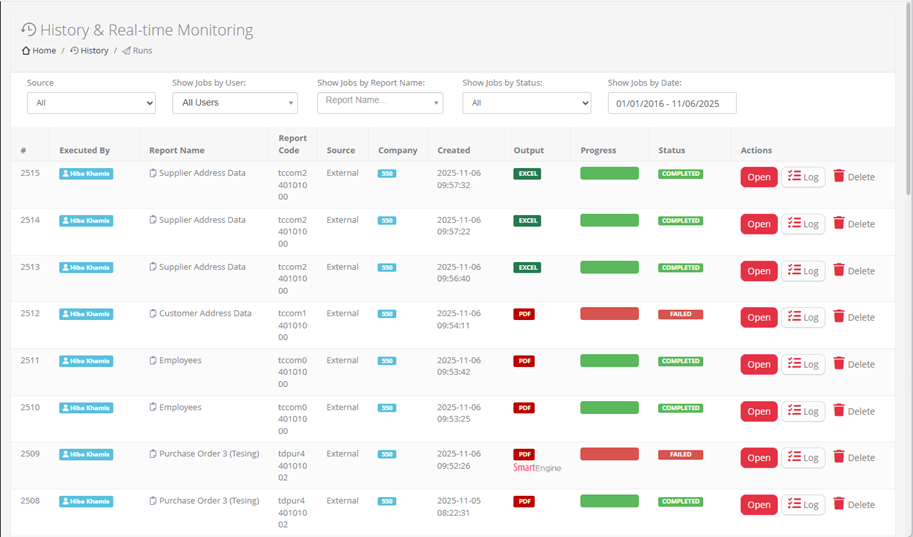
If you click on the Open button, you can reload this run again by opening the B2Win interface.
Or you can view the log for this run, if you click on Log button:
Run Details
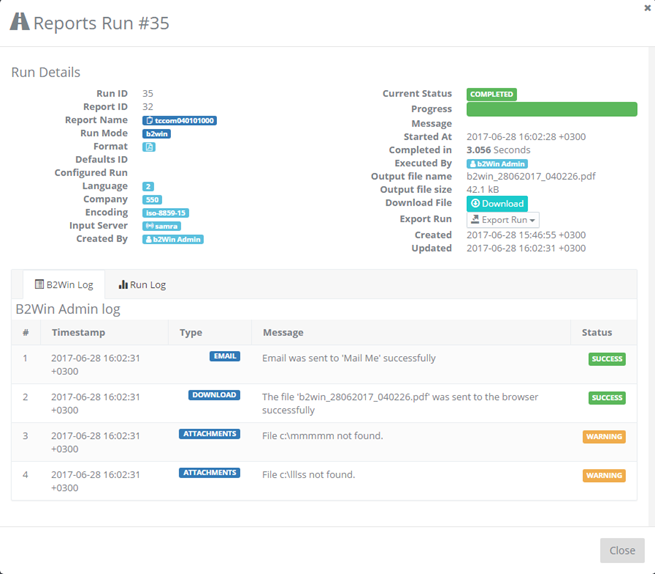
The details for this run, contains some data that was set to this run and the data was generated while running this run in the server.
B2Win Log
The log messages or actions for this run, like archive/print/launch or send, and here it displays a status for each action if succeeded or failed
Run Log
In this Run log (Admin Role only) you can view the system log file for this specific run, it’s for advanced users only.
Example run log:
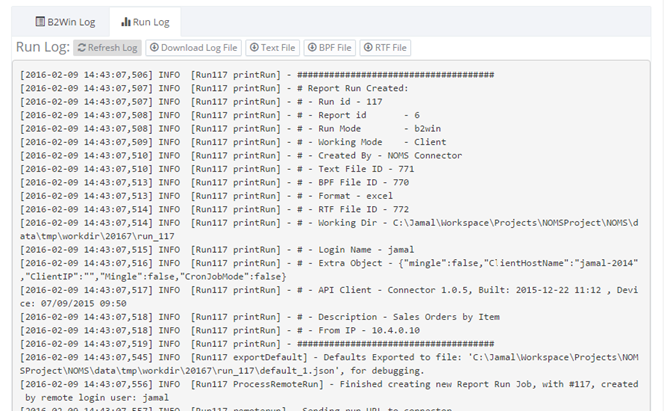
You can also download the input files that came from the ERP System, like bpf file/ text file and rtf file, also you can download the log file itself.
Export Run
To debug or reproduce an issue with a specific run in B2Win Suite, you can export that run. This is also useful when you need to share a report design or investigate a specific problem. You can then send the generated zip file to B2Win Suite support.
To export a run from the Run Log window, click on Export Run Button, and specify if you want a Full run that includes a report configuration also, or only the run object.
Use the full run when you want to export this run to another B2Win Suite System that doesn’t have the report configuration already.
Add Report - From Baan device
We covered this in Reports, the report will be added automatically on the user’s first run for the report from the ERP input server. The report will be created and can be viewed in the reports list.
Later on, we will cover how to edit this report and change settings or configurations in it, to fit our needs, like defaults or adding designs or Macros.
Edit Report
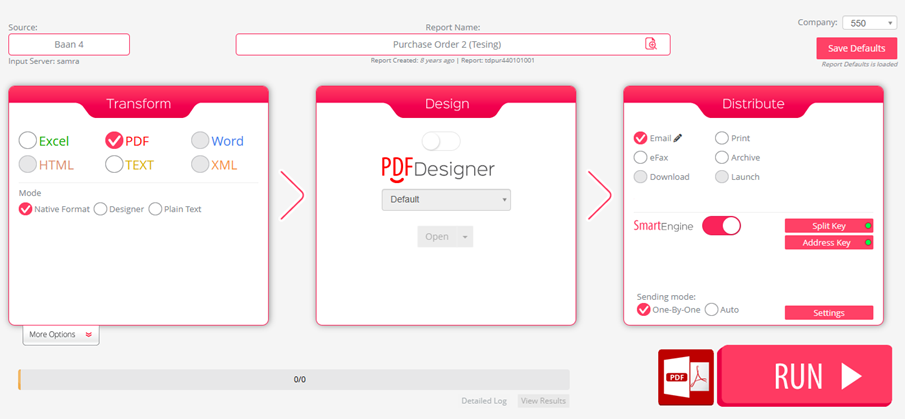
Users that have the permission to edit reports, can go to the reports list, choose one report and click on edit button. You will be redirected to the Applications page.
All settings that you change here are applied on the chosen report and the company displayed on the top right side of the window.
In case Smart Engine is enabled then if you change the company it will load the default settings for that report in the selected company, by default it will show the system default unless another specific report default was saved, then it will load the report default.