Excel Builder
Getting Started
Introduction
This manual describes the node Excel Builder. This node helps the developer prepare an excel file out of the node input DataFrame. The developer can set the columns data types and formats, he can also hide some columns if needed. Set some other settings for the excel file and sheet, like the font size and the sheet name, orientation.
After the developer saves these settings, each time this node runs, it will create an excel file with the data from the input DataFrame and apply these settings on it.
How to use this guide
Excel Builder displays the input in an excel like view. Including all column data types and formattings the user set.
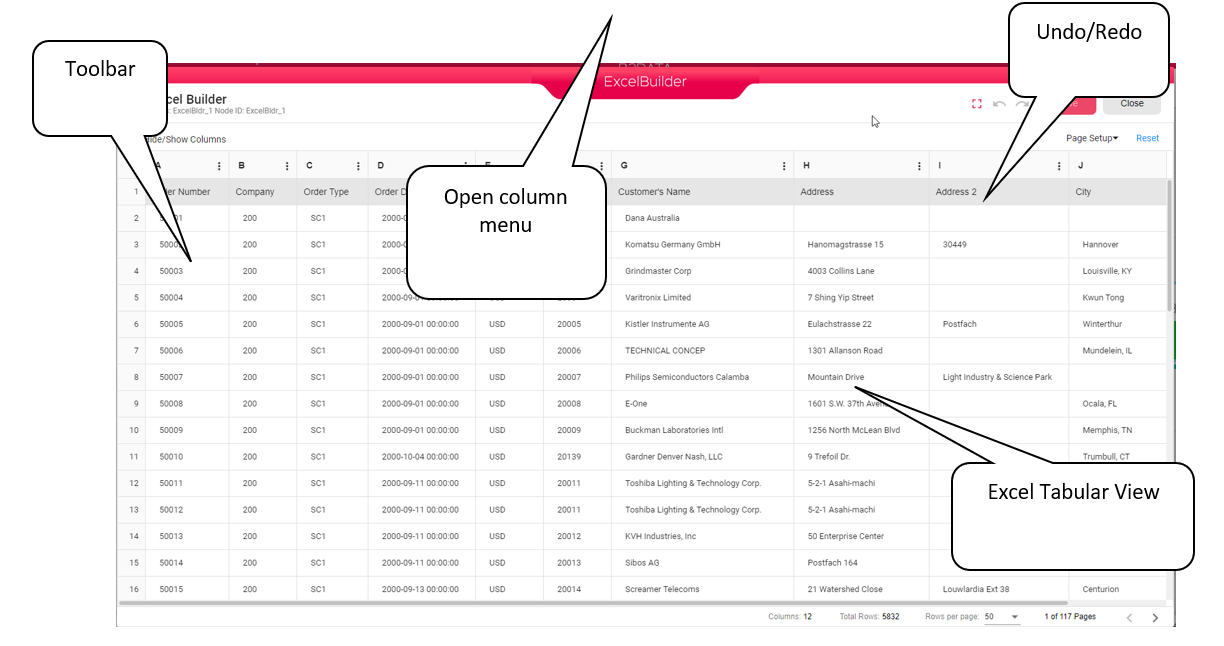
In the following chapters we will describe how you can work with the Excel Builder and create your Excel file output.
Excel Builder
Column Data Type
Set each column data type and format just like in excel.
Click on the three dots next to the column header, it will open the column menu
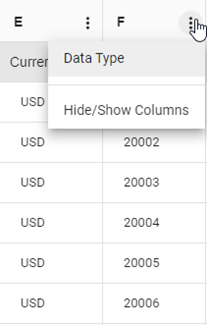
You will get the Data type dialog
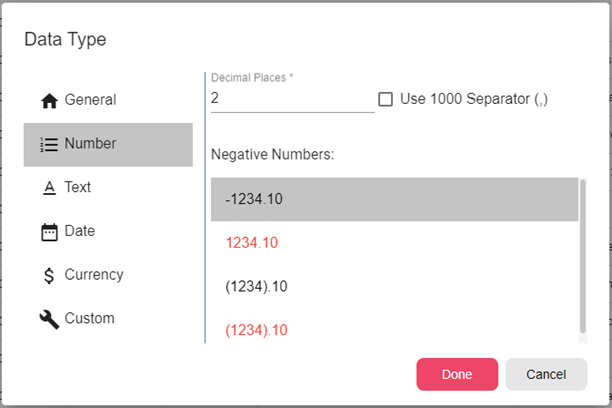
You can choose the General, Number, Text, Date, Currency or Custom data type. Then set the data type formatting as needed
When done you will see the selected columns data displayed according the chosen data type just like in Excel.
Hide Column
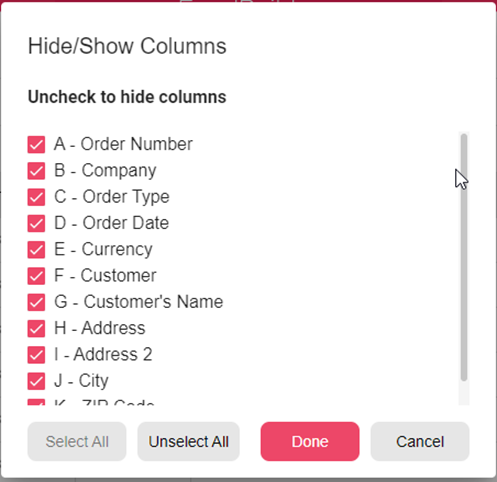
You have the Hide/Show Columns in the toolbar above the table. When you click on this button you will get a dialog with a list of all column. You can check or uncheck any column to hide or show the column in the Excel output.
Page Settings
Click on the Page Setup button on the top right side on the Excel Builder.
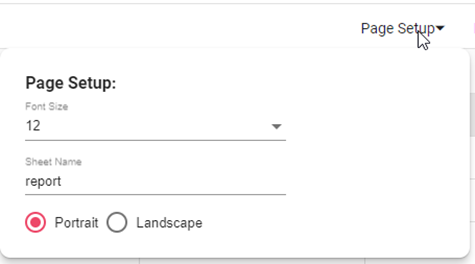
Here you can set the font size of the output. You may change the output excel sheet name and the orientation of the result file.
Reset
if you click on the Reset button on the top right corner of the Excel Builder, all the settings you have done will be reset and you can start over again and set your Excel output file.