Excel Merger
Merge several excel files using the Excel Merger.
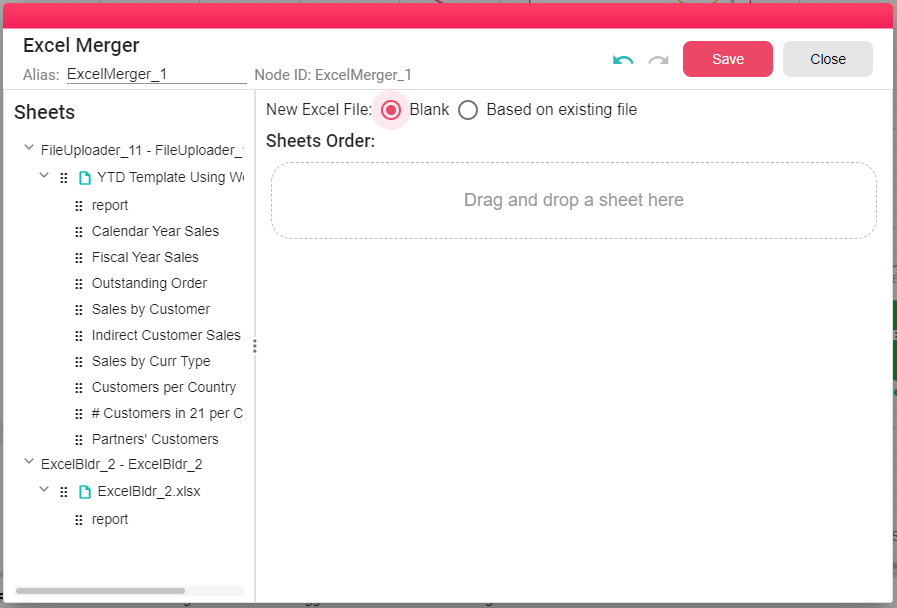
This node works in two modes:
Blank - No base file
You can build a new Excel file by dragging sheets from the input tree on the left to the main sheets area. Order the sheets in the list just as you need them to be in the output Excel file.
Based on existing file
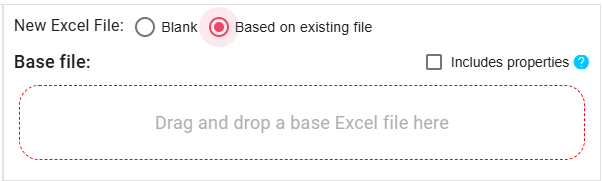
You can build your new Excel file based on one of the input Excel files.
Select one of the input files from the tree list on the left side in the Merger, drag and drop your base file in the marked area for this purpose. You will get all your base file sheets displayed as the output Excel file structure.
Now you can do some actions to update the base file structure and build your output Excel file. If you want to add more sheets to the output file, you can do that by dragging sheets from the tree on the left side and drop them where you need them to be positioned in the output.
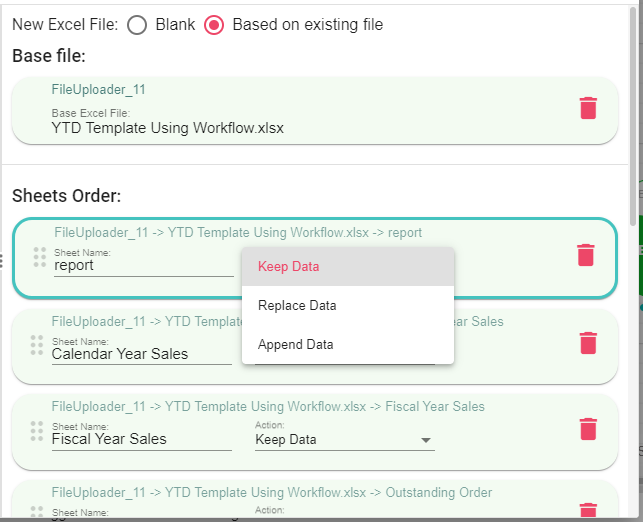
Actions that can be done on sheets in the output Excel file are:
-
Delete sheet - You can delete sheets by clicking on the
 button.
 -
Keep Data - Data in this sheet will be kept as it.
-
Replace Data - Replace the data in the current sheet with another sheet data. You will have to select the "From Sheet" from the list of sheets of the other Merger input file.
Then you have the choice to also replace the headers or skip them.
In case there is an Excel Table in the original sheet and you want the new data to replace the data inside this Excel Table then you will have to select it.

-
Append Data - Append the data in the current sheet to another sheet data. You will have to select the "From Sheet" from the list of sheets of the other Merger input file.
In case there are Excel Tables in the original sheet and you want the new data to be appended to this Excel Table then you will have to select it.