Smart Engine (User)
Getting Started
How to use this guide
This guide will take the users through B2Win Suite Smart Engine for the End user after that we have a report configured and ready to.
We will go through the most basic features of using B2Win Suite Smart Engine, while getting to know all the options within the Applications One-By-One interface, that its core feature to show you all the documents for a specific report that is printed from your ERP and the actions to be applied for each document.
The B2Win Suite Device
B2Win Suite is installed as a device inside BAAN system, and can be used whenever you want to print a report from BAAN, using the SmartEngine
- You just need to print the report to the B2Win Suite device, assuming we have the SmartEngine device name:
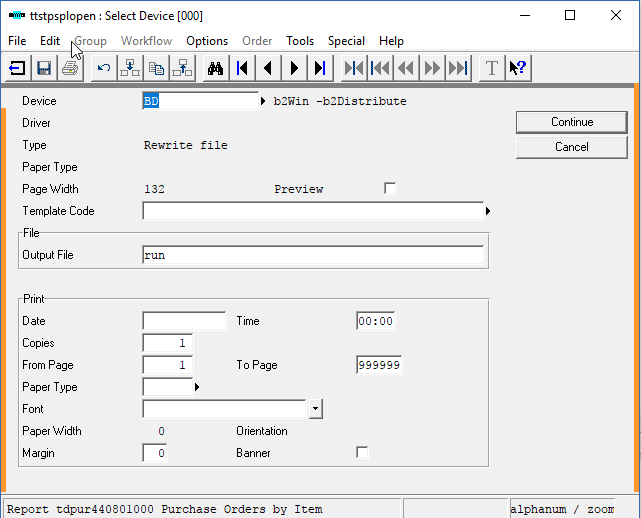
Figure 1 - Choose the device b2Win SmartEngine
- When you click on continue, you will have your default browser opened on B2Win Suite Application web page
Usage
Application Interface
Once the browser window is fully loaded, B2Win Suite Application page will be opened, with the One-By-One interface, since the admin already configured this report in order to be displayed in One-By-One (To Configure a new report read implementation manual):
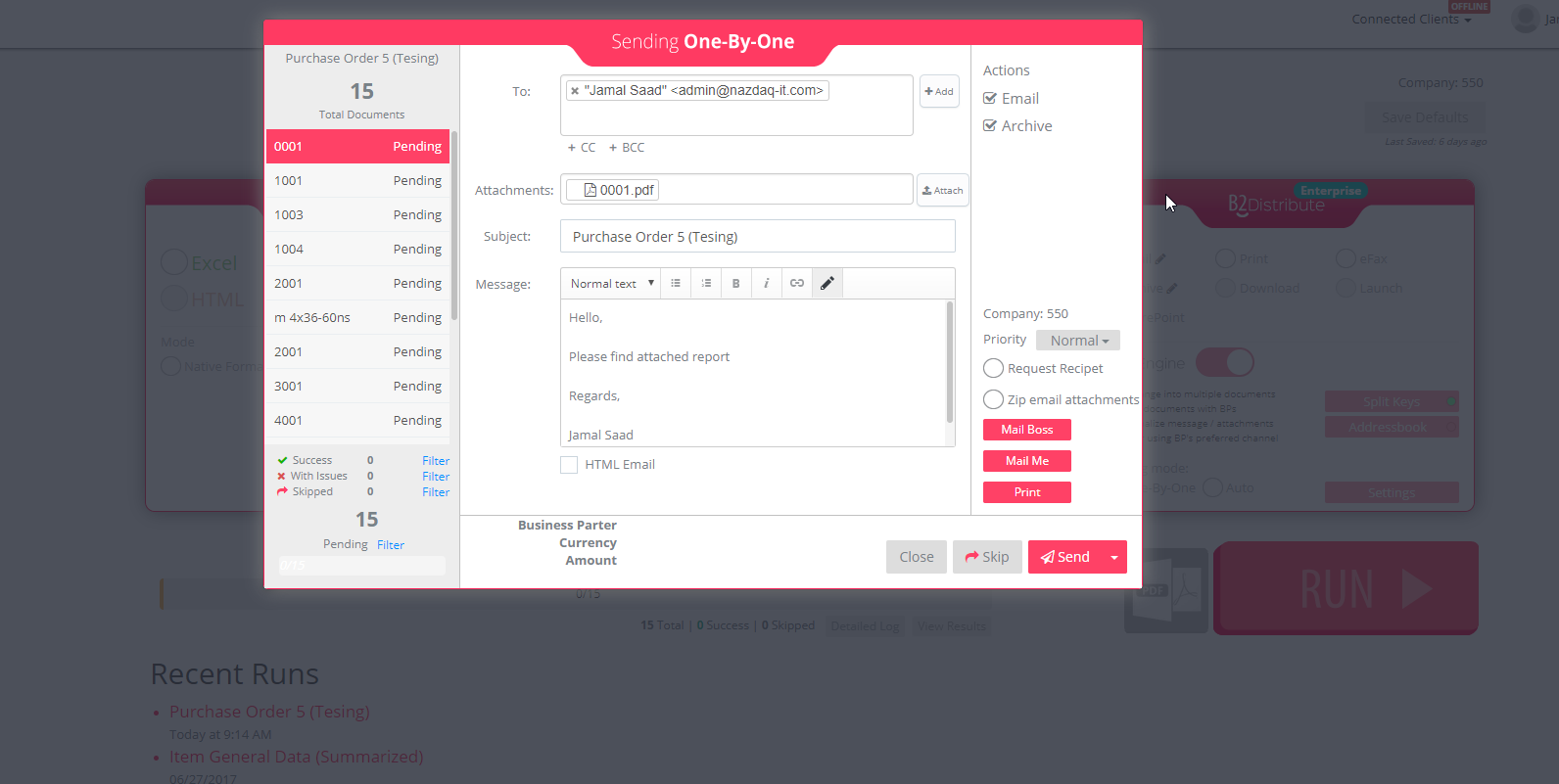
Figure 2 - B2Win Suite One-By-One Page
Documents
When the Smart Engine process your report, it should split the report according to the marked key you specified or your admin already configured, and you should see in the left side the list of documents that were generated, on each document you can specify what you would like to perform: Sending or skipping, and you can see what actions is specified with each document (Archive/Email/Print/…)
Sending
The user has three sending options:
- Send document one by one checking each configuration
- Send all pending without the skipped documents
- If you skipped something before and you wish to send them now , you can send all skipped

Skipping
By clicking on the skip button you will be directed to the next document to configure while this one will be signed as skipped, you can return to it anytime change the configuration and send it

View Logs
Once sending is finished (completed or aborted) you can see what exactly was sent successfully, aborted or skipped and each document configuration at the right bar side you can click on Sending log link which will open the detailed log for each action that was performed per document:
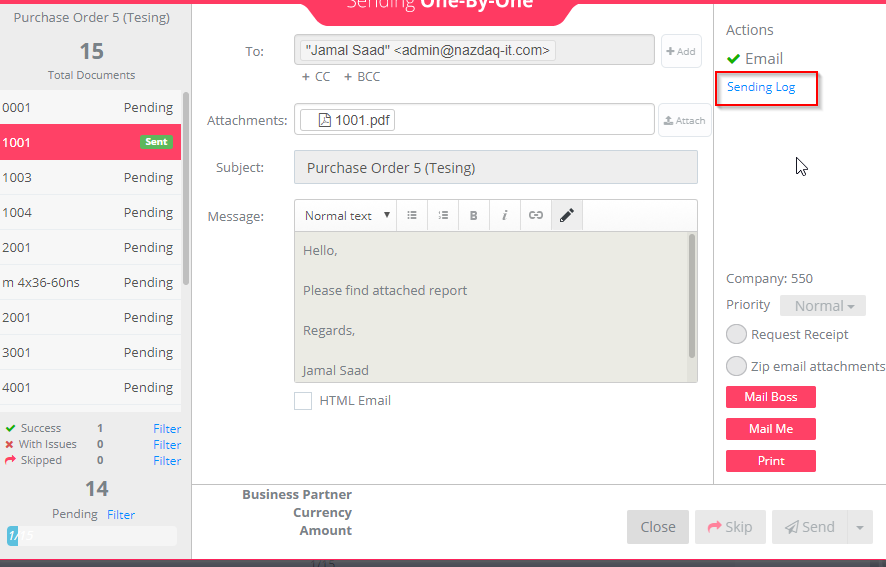
or by clicking on the View Result button under the Progress bar:

Retry Actions
If something went wrong while sending the document, could be with archiving/printing or sending, you can resolve that issue after you fixed the problem, the issue can be for example:
- Printer is offline
- Archive path doesn’t exist
- Network share can be down
- B2Win client is not connected
You can resolve the issue from two locations:
From One-By-One interface right bar:
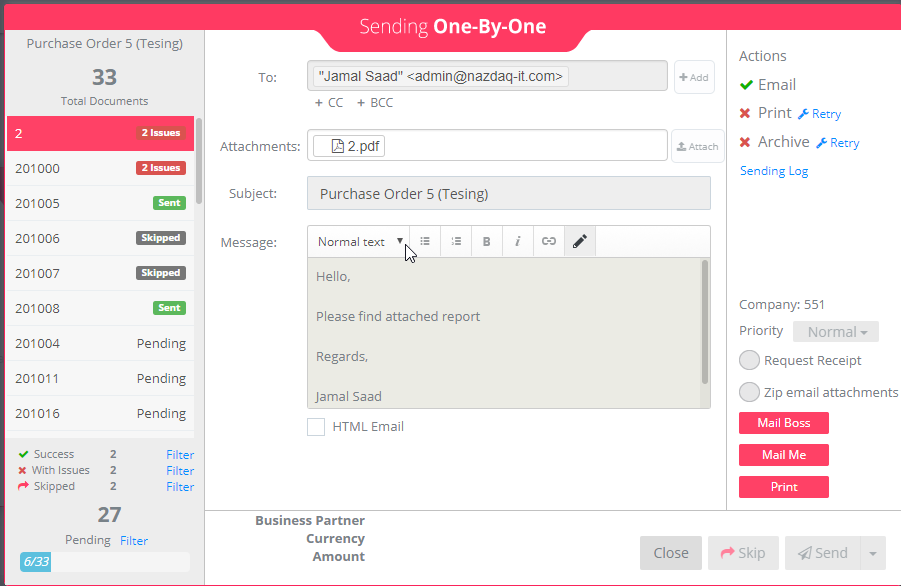
The two documents on the left has failed with two issues:
When hovering on the failed icon at the right side:
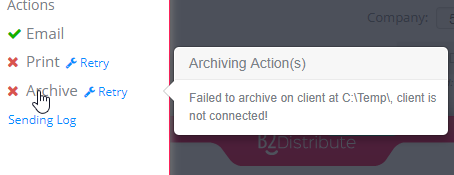
You will see the error that occurred while sending this document, in this case the error is that the client is offline, we connect the client and click on Retry button, to retry that same action:
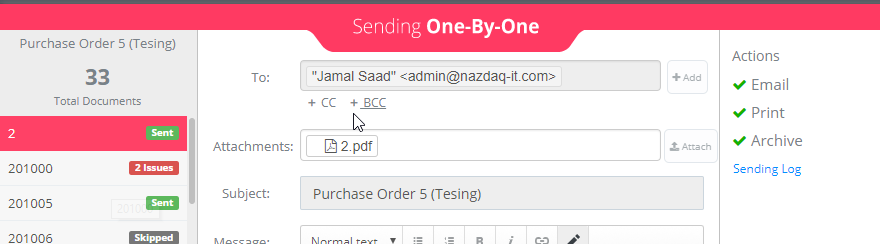
Both actions is now resolved.
Extra Actions
Mail Boss
The mail boss button will send a copy of the document to the supervisor that is defined in the user Profile-> Settings-> Email Settings -> Supervisor Email.
You can also add Mail Boss in the To, Cc and the Bcc fields.

Mail Me
The Mail Me button will send a copy of the document to the email that is defined in the user Profile-> Email.
You can also add Mail Me in the To, Cc and the Bcc fields.

Print
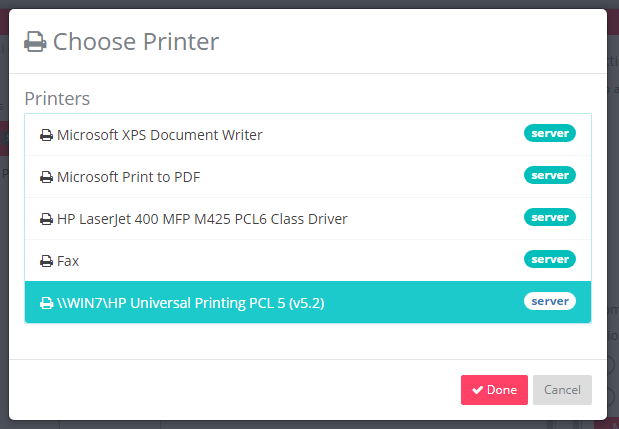
When clicking on the print button

It will ask you to choose a printer located on the client or server to print the document.
Closing One-By-One
When closing One By One a modal like this appears
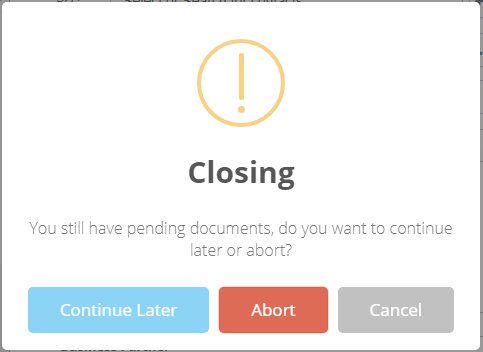
Where you have 3 options:
1. Cancel: you will return the one by one modal
2. Abort: it will abort all pending and skipped documents and close the modal
3. Continue Later: it will close the modal, but you can continue later from where you last stopped by simply clicking on the Run button again for this run